

EN, Language: English
Language
EN, Language: English
Help centre
Guides and answers for running your organisation on Anggota.
Adding the club app to a phone
A progressive web app (PWA) is a website that a phone can install like an app: it gets its own icon on the home screen and opens full screen, without the browser's address bar and without an app store.
Your member portal works this way. A member adds it to their phone once, and from then on your club's icon sits on their home screen next to their other apps. Tapping it opens straight to their member home: their membership, their card and your club's news.
What your members get
- Your club's name and icon on their home screen, taken from your logo and brand colour. There is nothing for you to set up.
- The member home, full screen, with the portal's tabs along the bottom like any other app.
- Their card, events and directory pages even with no signal. The card opens from the home screen app at the door, in a basement hall or a field with no reception, along with their upcoming events and the partner listings they have looked at (see below).
- Nothing to download or update. It is the same member portal, so every change you make shows up straight away.
It works on Android phones (Chrome, Samsung Internet and others) and on iPhone (Safari, Chrome, Firefox and Edge).
What works with no signal
The app saves a copy of the pages a member is most likely to need at the door or on the road, so they still open with no reception. Each time the member opens the app with a signal, these copies are refreshed in the background.
| Kept on the phone | When |
|---|---|
| Membership card | Once opened with a signal. It shows when it was saved and the date the membership is valid until. Scanning its QR code still checks the current status. |
| Profile | Refreshed when the app opens (unless saved in the last 30 minutes). |
| Events list (the first page) | Refreshed when the app opens, the same way. |
| Upcoming event pages | Up to 10, soonest first: events the member has booked in the next 60 days come first, then other events in the next 14 days (one date for a repeating event). Cancelled events are left out. |
| Directory pages (partner and member business listings) | The plain directory list (not searches, filters or later pages) and each listing the member has viewed. A directory can be large, so only the pages they opened are kept. |
With no signal, a saved page shows No signal: showing a saved copy at the top. It is read-only: forms, bookings and links that leave the member area wait for a connection. A page that was never saved says it needs a connection, with the card one tap away.
Saved pages are deleted when the member signs out or someone else signs in on that phone. The card stays after sign-out, so it still opens at the door. It is replaced when a different member signs in.
Where members find it in the member portal
Members see it in two places, on their phone only.
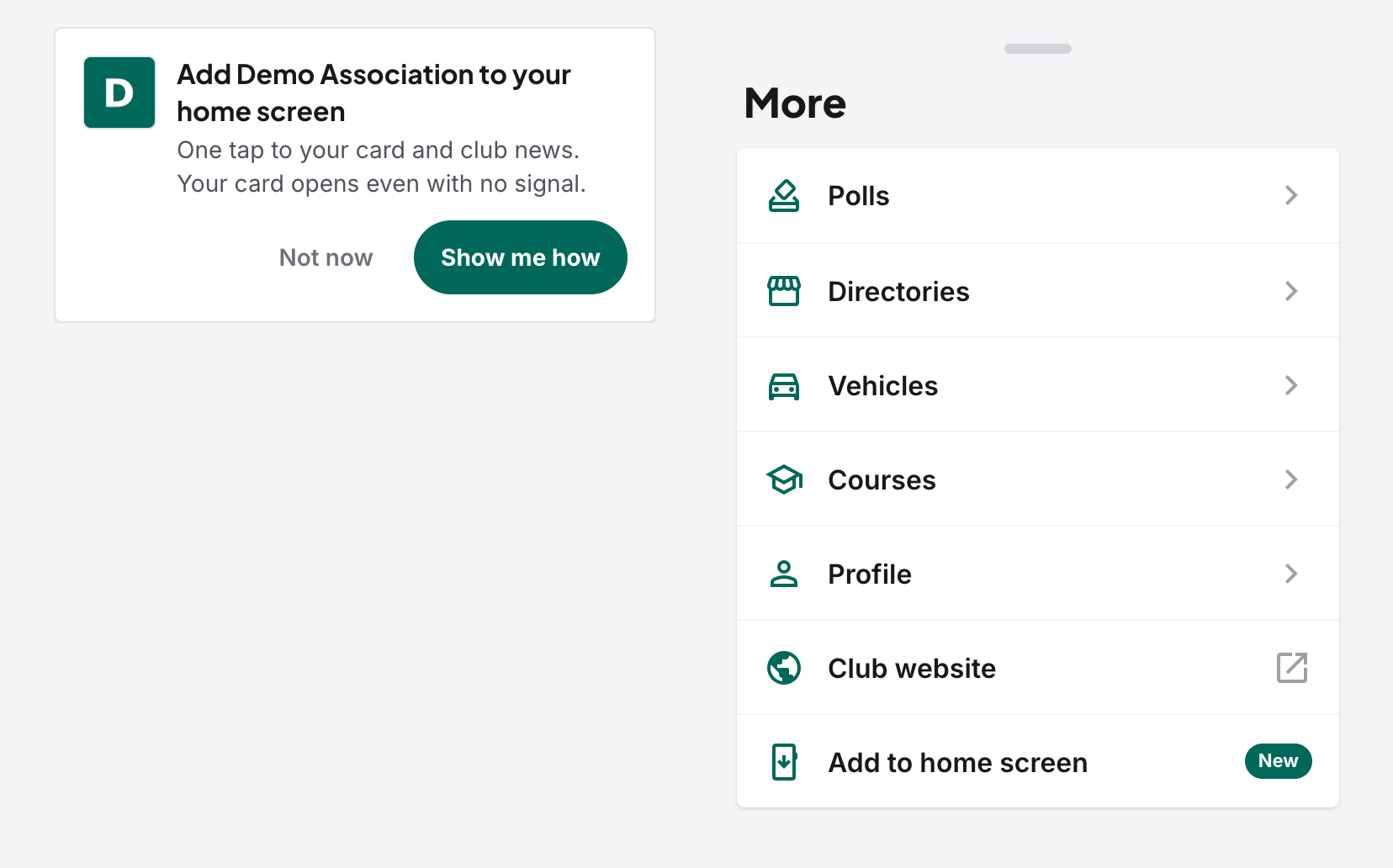
1. The card on their member home. After a member signs in on their phone, a card says Add [your club] to your home screen, with a Show me how button. Not now puts it away, and it stops appearing after a few visits or once the app is installed. On Android phones where the browser has its own install prompt, the button says Install app and adds the app in one tap.
2. Add to home screen in More. This one is always there. Members tap More in the bar at the bottom and then Add to home screen. It is marked New until they first open it. If your club has nothing else in More, it sits in the account menu instead (the member's initial at the top right). Once the app is installed, the item disappears inside it, since there is nothing left to add.
Show me how: the step-by-step guide
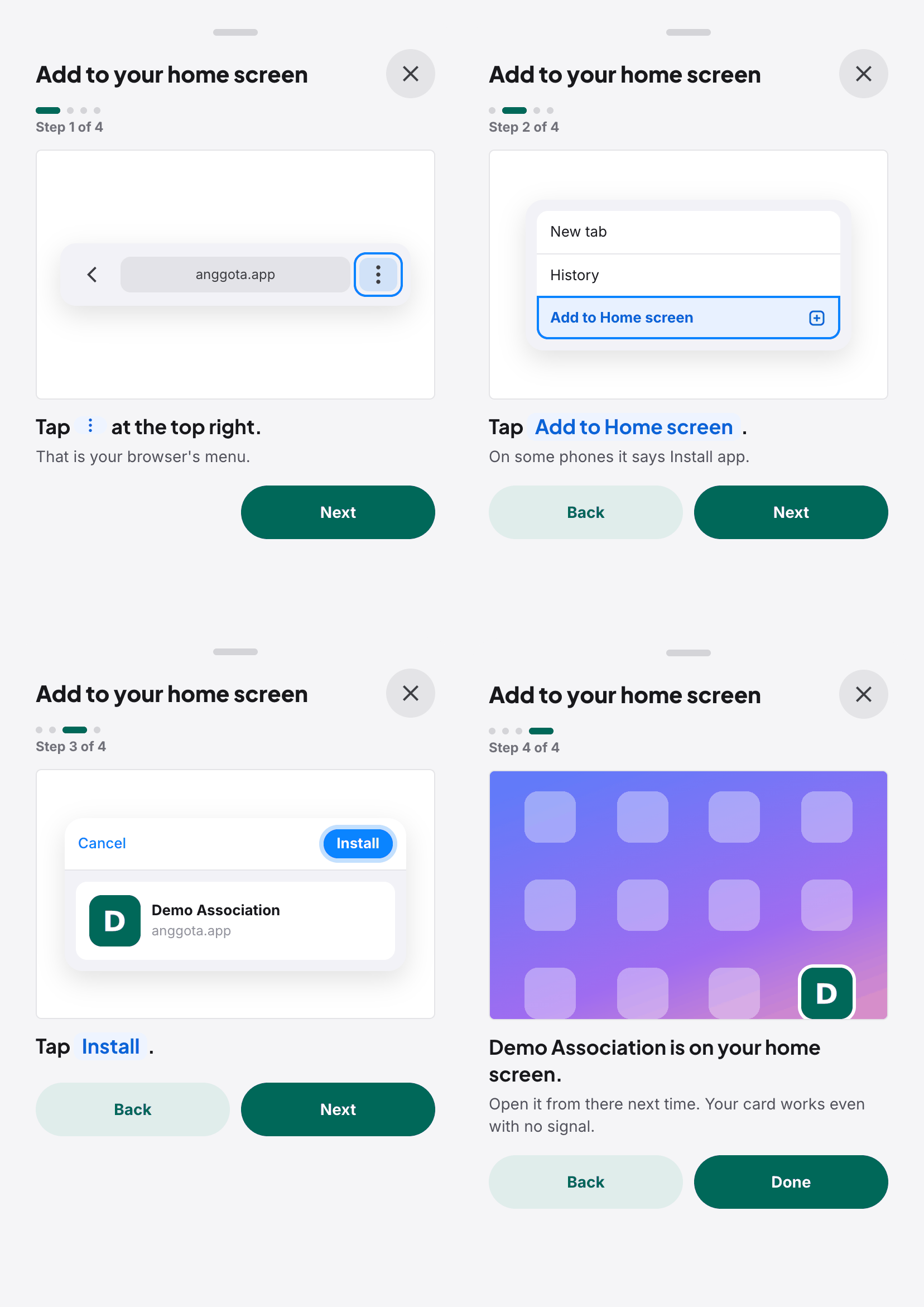
Show me how opens a short guide, one step at a time, with a drawing of what the member will see on their own screen. The guide reads which phone and browser the member is using and shows the steps for that one, using the button names the phone shows, in the language the member uses the portal in. On the first step an arrow points at the real button on the screen.
On an Android phone (Chrome)
- Tap the ⋮ menu at the top right.
- Tap Add to Home screen. On some phones it says Install app.
- Tap Install.
- Done: the club's icon is on the home screen.
In Samsung Internet, Firefox and Edge the menu sits elsewhere, so the guide names the menu rather than a corner of the screen.
On an iPhone (Safari)
- Tap Share at the bottom of the screen.
- Scroll down and tap Add to Home Screen.
- Tap Add at the top right.
- Done: the club's icon is on the home screen.
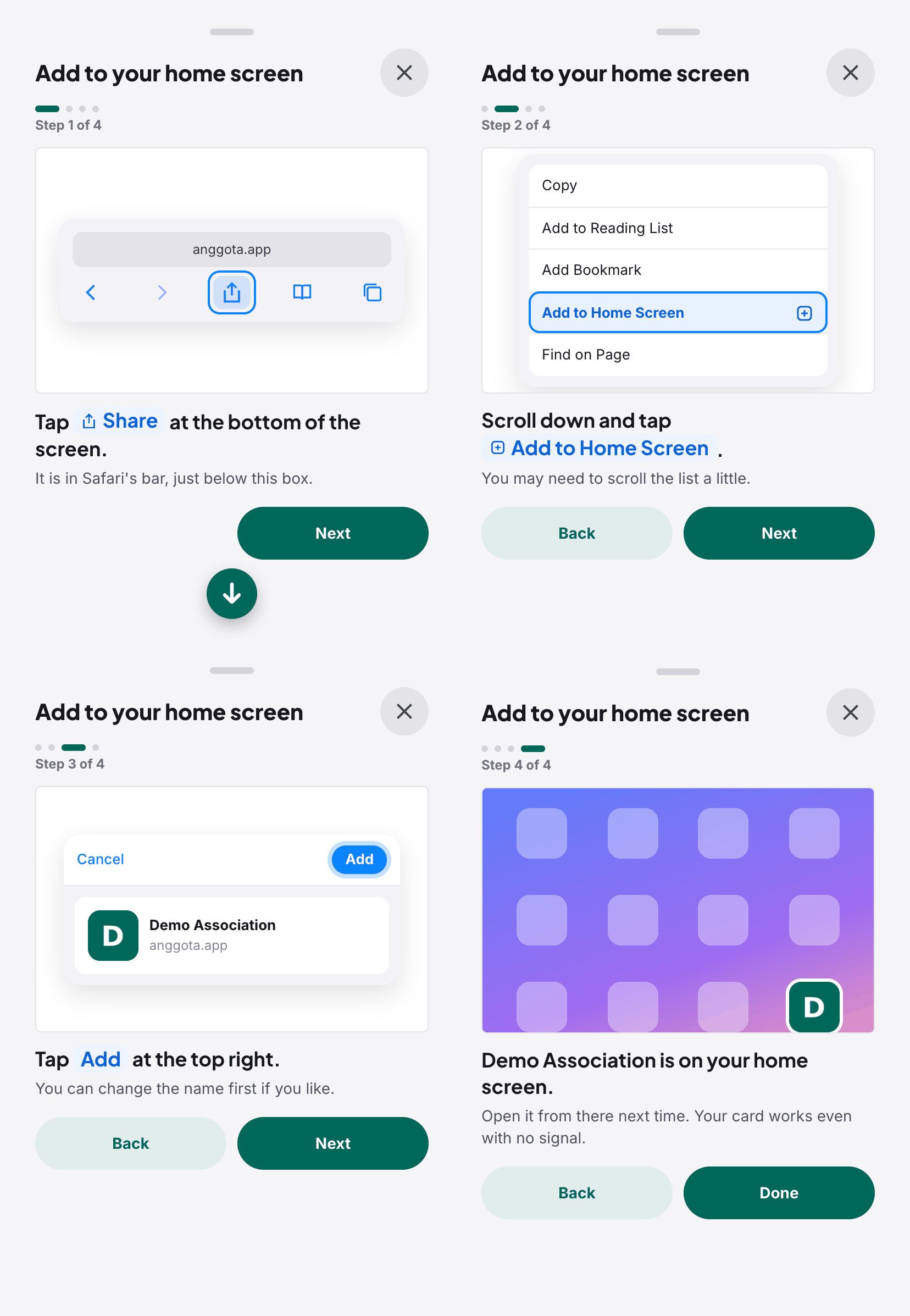
On newer iPhones (iOS 26), Share has moved into the ••• menu at the bottom right, and the guide shows that first. In Chrome on an iPhone, Share is at the top right next to the address; in Firefox and Edge it is inside their own menu. The guide covers each of these.
Opened from WhatsApp, Instagram or Facebook? A link opened inside another app shows the page in that app's own browser, which cannot add anything to the home screen. The guide spots this and first tells the member to open the page in Chrome (Android) or Safari (iPhone), then to open the guide again from there. On Android a link from an app often opens in Chrome itself, or in a Chrome tab inside the app. The guide then shows the normal Android steps and, in Chrome, adds that if the item is not in the menu, the member chooses Open in Chrome first.
Helping your members get started
The simplest way to get members onto the app is to send them to the member portal on their phone and let the card on their home do the rest. If someone asks you how, point them to More → Add to home screen and the guide will walk them through it.
Still stuck? Reach your Anggota contact and we will walk you through it.
mailContact us