

EN, Language: English
Language
EN, Language: English
Help centre
Guides and answers for running your organisation on Anggota.
News articles
News lets you post articles to your website (match reports, notices, committee updates), each with a date, an author, a photo and any number of categories. Members read them on your site; you write them in the workspace, with no separate blog to run.
Switching it on
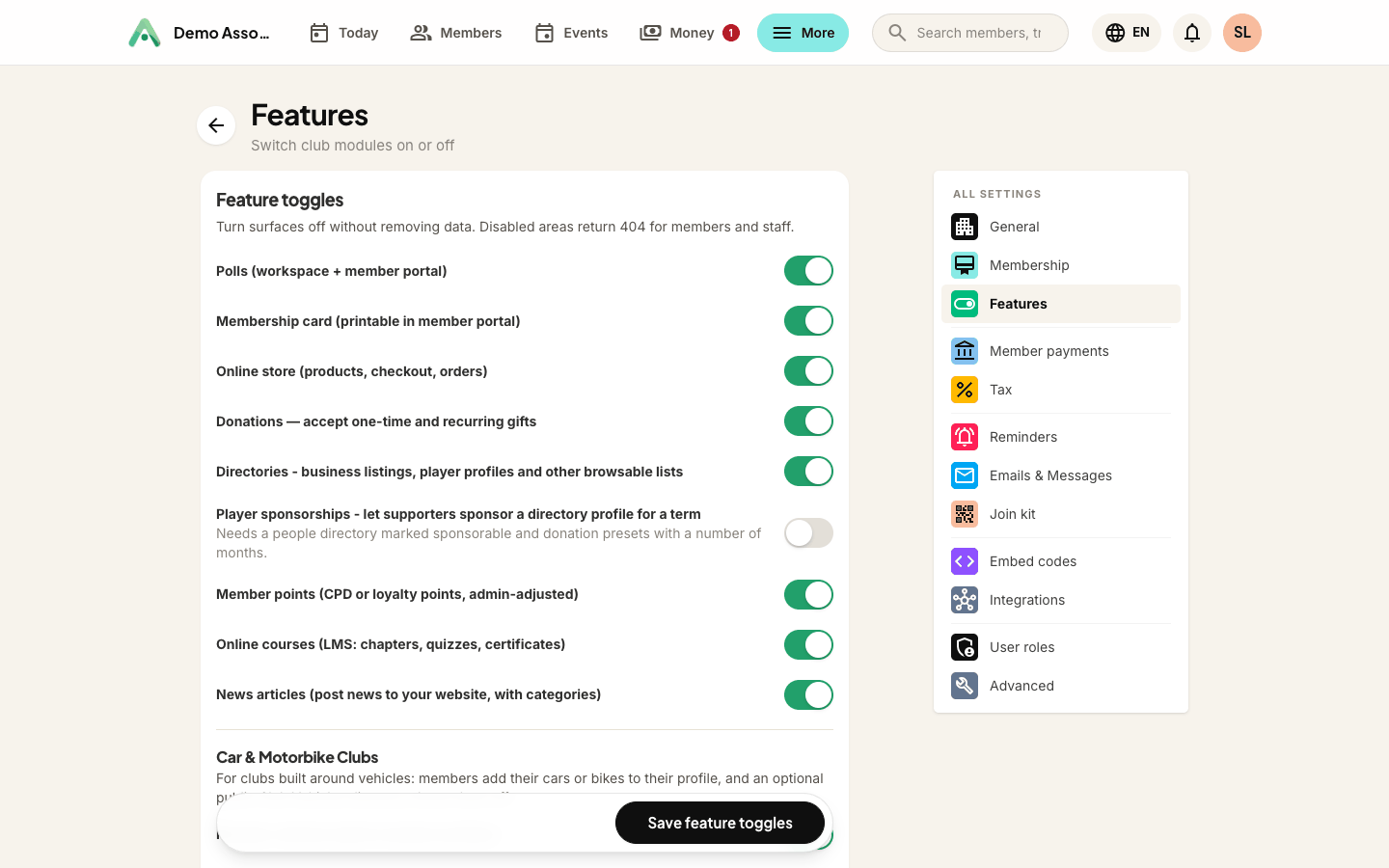
News is off until you turn it on. Go to More → Settings → Features and tick News articles. A News entry then appears under More, in the Website group.
Writing an article
Open More → News and click New article. An article has:
- Title and the article body, written in the same editor you use elsewhere.
- Photo - picked from your media library, shown on the article card and at the top of the article.
- Date - what readers see, and what the newest-first order uses. It defaults to today when you publish, and you can backdate a notice.
- Author - chosen from your own team. If that person later leaves and their account is removed, the byline stays on everything they wrote.
- Categories - an article can sit in more than one. A junior match report can be filed under both Match reports and Juniors without writing it twice.
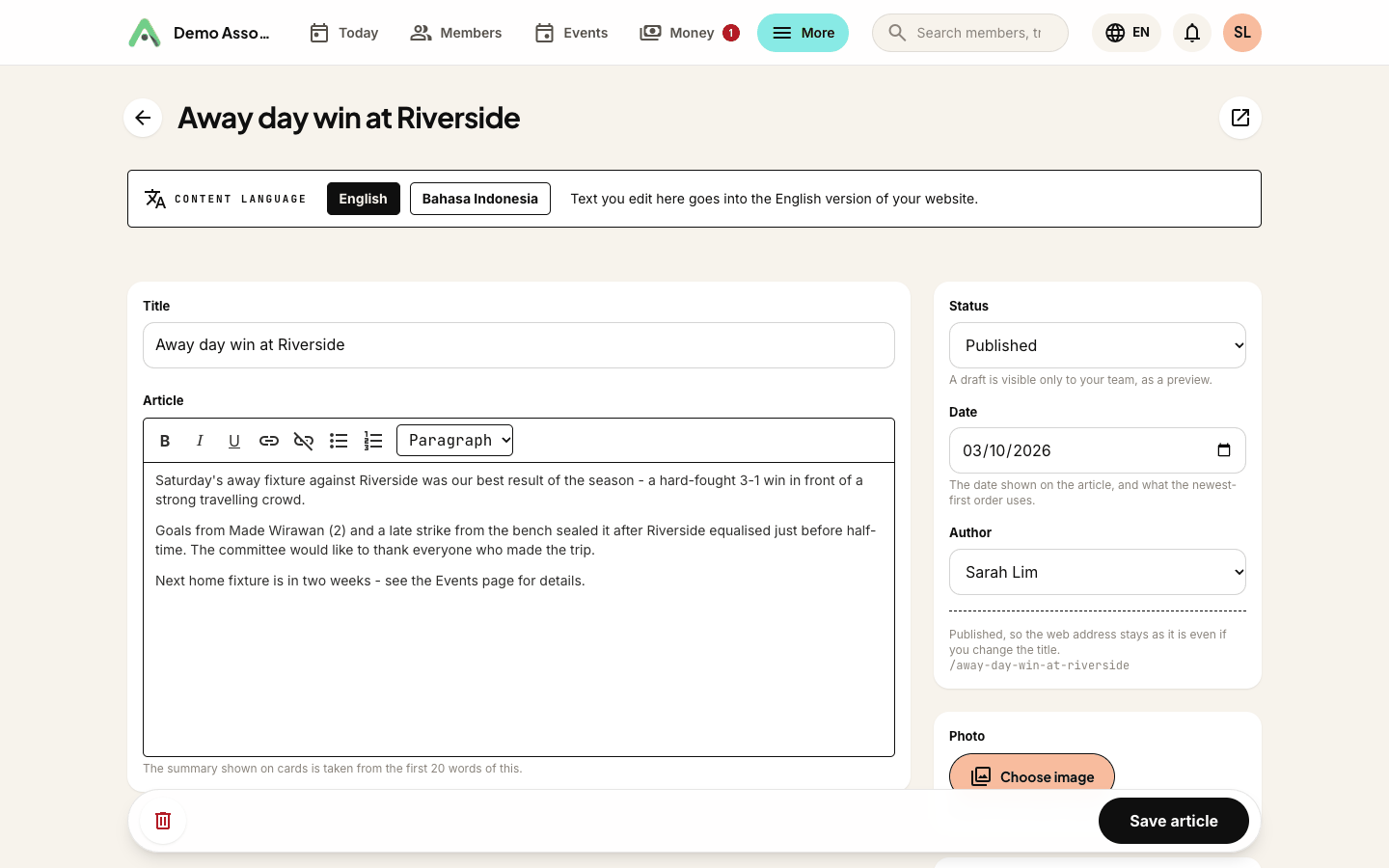
Set Status to Draft while you work. A draft is invisible to the public but your team can open its page and see exactly how it will look. Switch it to Published when it is ready.
There is no separate summary to write, because the card and the search description use the first 20 words of your article.
Once an article is published its web address stops changing, even if you rename it. That's on purpose, because by then people may have shared or linked to it, and a link that quietly stops working is worse than a title that no longer matches the URL. While it is still a draft, renaming updates the address freely.
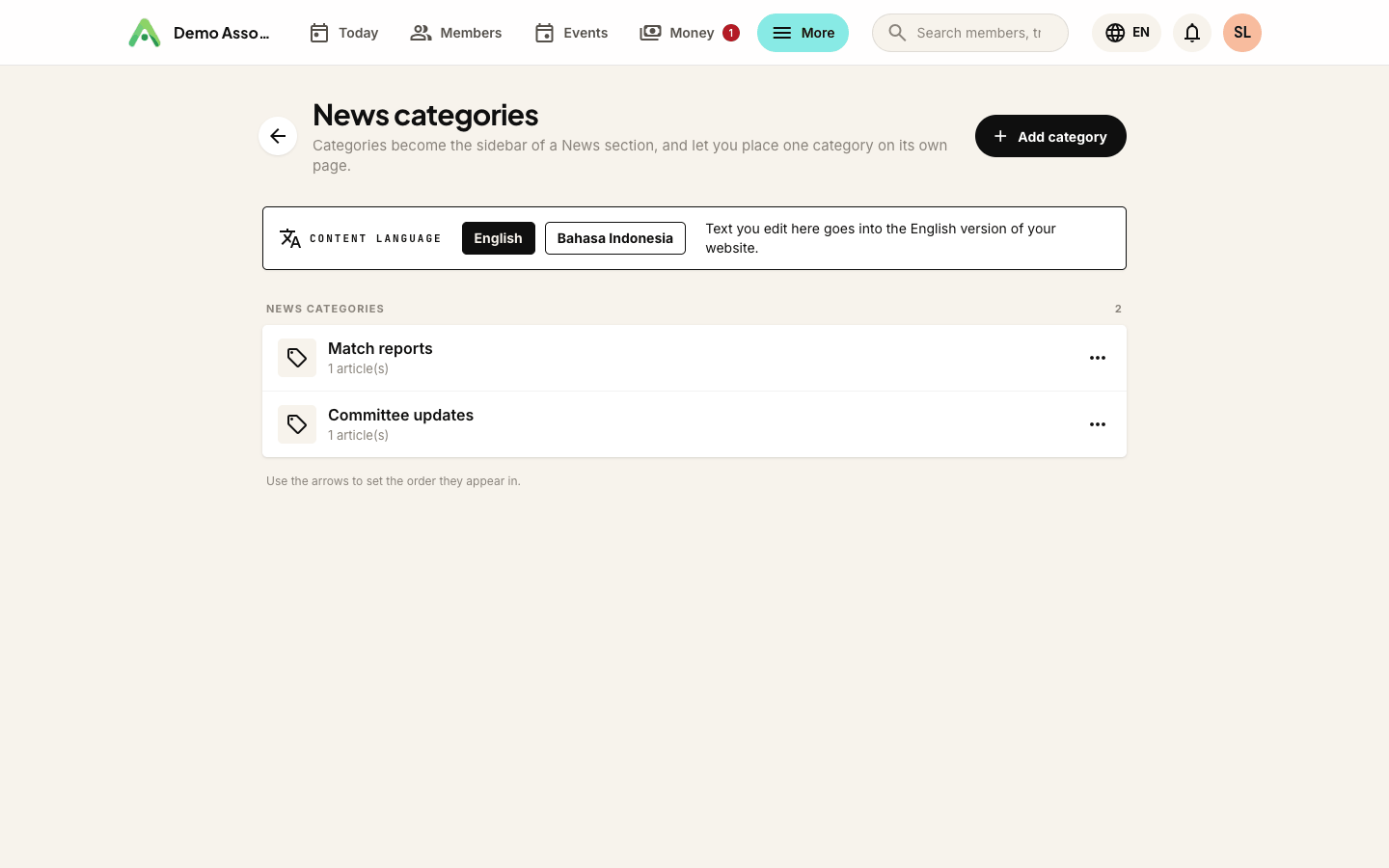
Categories
More → News → Manage categories is where you add them. Drag them into the order you want with the arrows, and that is the order readers see. A category still holding articles cannot be deleted; move the articles out first.
Putting news on your site
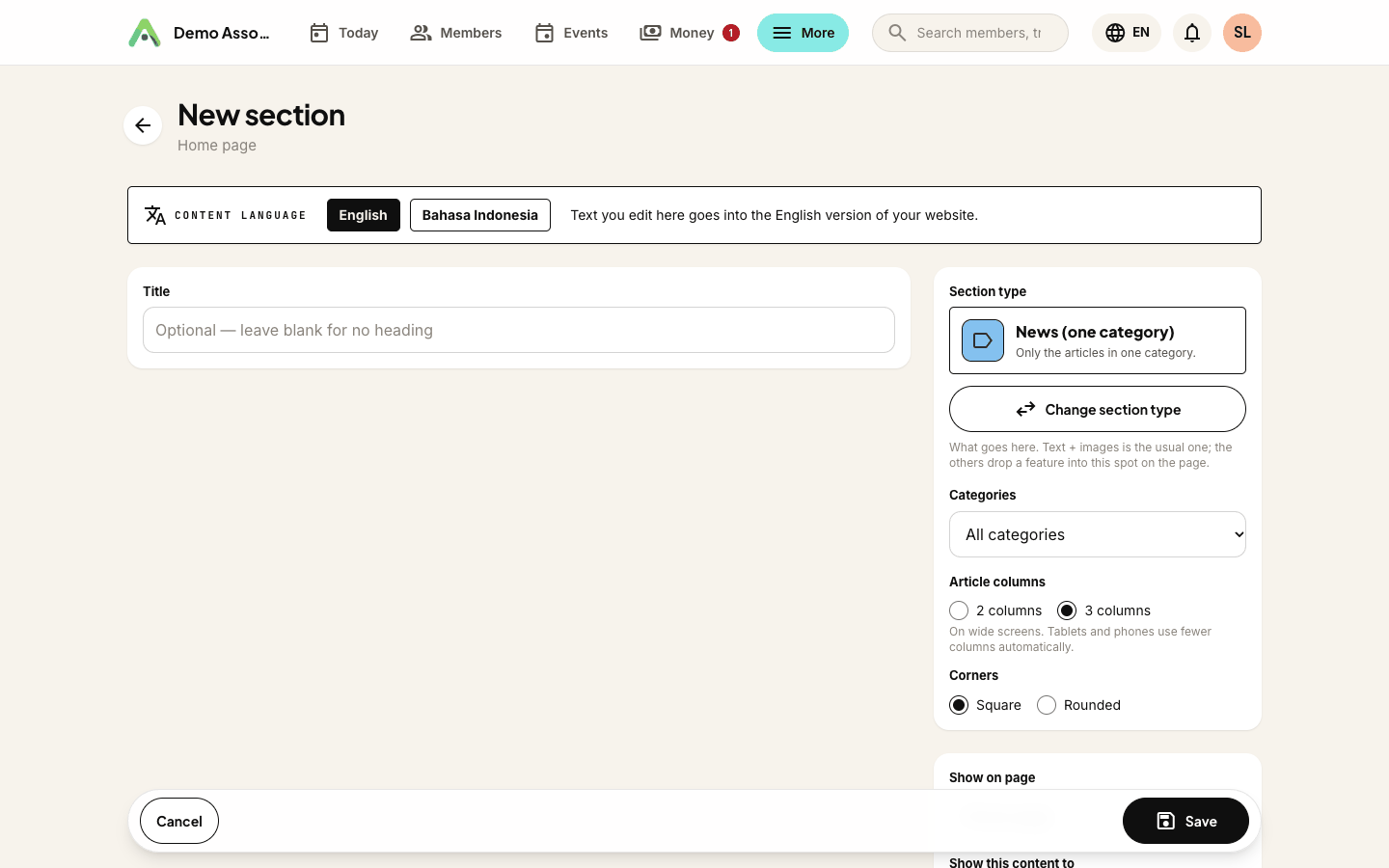
News does not appear anywhere until you add a section to a page. On any page, add a section and choose one of three types:
- News (all articles, with categories) - the full archive, with a category list beside it that readers can filter by. This is the one to use for a "News" page.
- News (one category) - the same grid, showing a single category only, with no category list. Good for a "Latest match reports" block on your home page.
- News carousel (latest articles, arrows) - your latest articles in a single row that visitors move through with arrow buttons. Leave it on All categories or pick one category. Good for a home page that should stay short.
You can mix them on one site. A home page might carry a carousel or a one-category block while a dedicated news page carries the full archive, and each pages through its own articles independently.
Every news section also has two display choices:
- Article columns - 2 columns or 3 columns of cards on wide screens. Tablets and phones use fewer columns automatically.
- Corners - Square or Rounded cards.
Each article also gets its own page at your-site/news/article-name, linked from every card.
Found by search engines
Published articles are added to your sitemap automatically and carry proper article metadata, so search engines can pick them up. Drafts never are, and neither is anything on a site you have not published yet.
Next: sections and layouts, or set the look of your site under colours, fonts and header.
Still stuck? Reach your Anggota contact and we will walk you through it.
mailContact us