EN, Language: English
Language
EN, Language: English
Help centre
Guides and answers for running your organisation on Anggota.
Your Anggota website
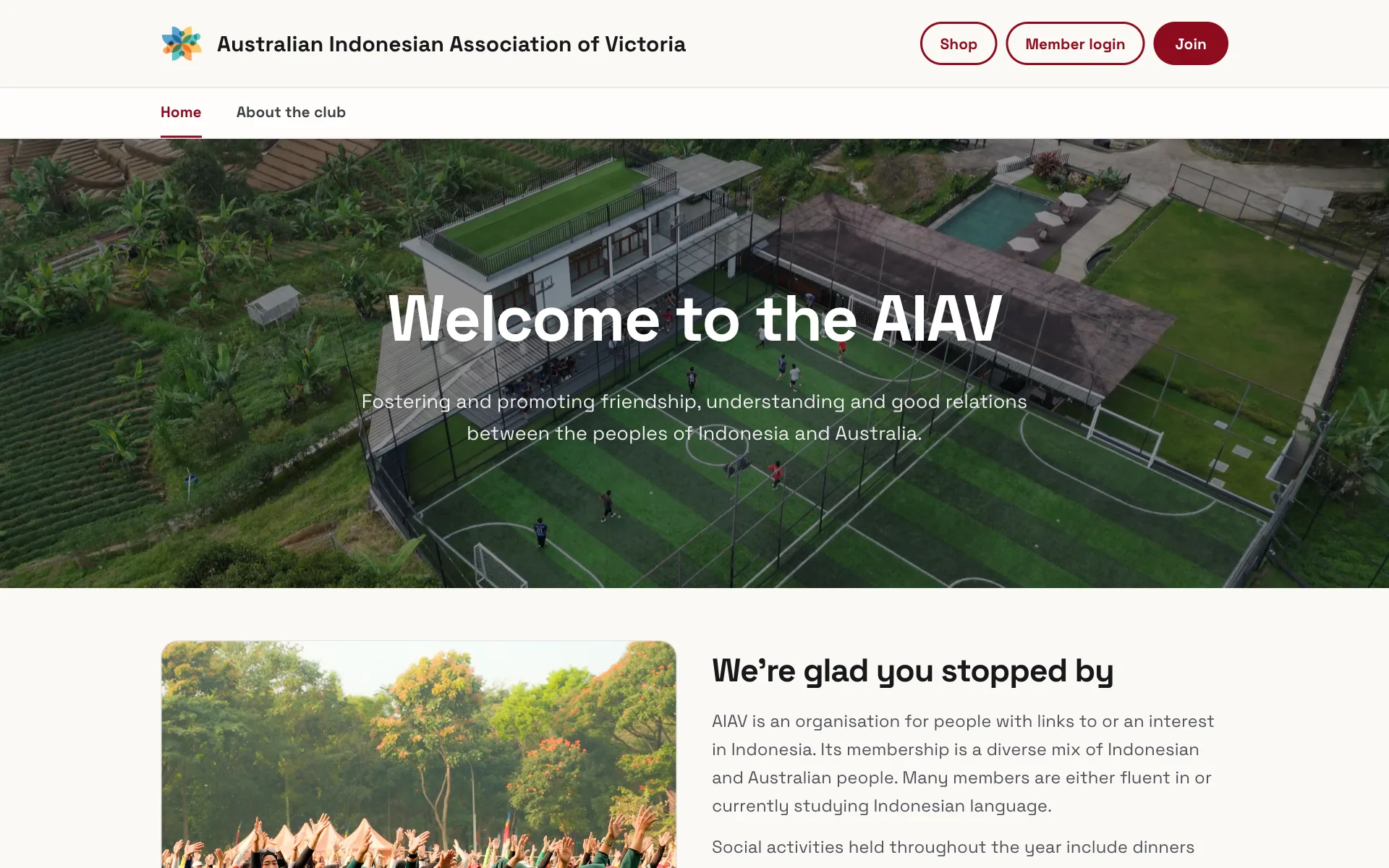
Every organisation gets a ready-made, one-page public website, hosted by Anggota, at anggota.app/your-slug. There's no coding and no separate hosting to sort out, because it's there from day one. It starts as a draft only you can preview: when it's ready, tick Make my website live under Website → Domain & publishing and save.
Edit your website
Open More → Pages (the Website screen) to shape the page. Add sections (an about block, your membership plans, upcoming events, a contact form), reorder them into the shape you want, and publish when you're happy. Sections come in several layouts, including two- and three-column blocks; see sections and layouts.
How the site's look is set
The Design tab of the Website screen is split into tabs of its own (Branding, Colour scheme, Header layout, Fonts and Top menu), so each decision has its own place. Colours come from a designer that shows a live mock-up as you choose, your header's arrangement is a setting rather than a fixed shape, and the font pickers search the whole Google Fonts library.
That has a guide of its own, colours, fonts and header.
Watching it as you build
On a desktop screen the page editor puts a live preview beside the form, taking half the screen. Change a section, save, and the preview refreshes, so there's no opening the public site in another tab to see whether you got it right. Scroll inside the preview window to see further down the page; there is a Refresh button if you want to force it.
Sections themselves open in a view mode first and switch to edit mode when you want to change them, and the form mirrors the layout you picked, so a two-column section is edited in two columns.
Your public address
Choose your slug under Website so the page lives at anggota.app/your-slug. Or connect your own custom domain (for example www.yourassociation.org) so the Anggota site loads on your own address instead.
It just works
Joining a membership, registering for events and donating all run natively on this page. Members never leave it, and everything they do syncs straight to your member database, with no exports or copying between tools.
Events get their own page too. Each event on your site links through to a full detail page (description, date, location, tickets and any details you chose to publish), with a Register button that carries the visitor into the booking flow. Membership plans behave the same way: a longer description collapses behind a View details toggle so the cards stay tidy.
For members who are signed in
If a member is signed in, the page adapts to them. Their current plan is marked as such, a Renew button appears when renewal is due, and join and registration forms arrive prefilled with their details, with the email locked to their account.
A contact form on your page
Add a contact section and enquiries reach you by email, with replies going straight back to the enquirer. You choose the destination address under More → Settings → Embed codes → Contact settings, and you can offer subject options there too if you want enquiries sorted.
Your website in two languages
If your organisation works in English plus one other language (set under Settings → General → Languages), your public site can offer both.
- Open Website, go to the Design tab and open Top menu.
- Tick Offer my website in [your other language] too.
- Save.
Visitors now get a language switch on your site. They see your translation where you have one, and your original text where you have not.
To write the translations, use the Content language bar near the top of the Website, page, section and News screens. Click your other language and whatever you type is saved as that translation. Images, layout, links and settings are shared, so a change to those applies to both languages. New content is created in your default language first, then translated.
While you are translating, a panel on each edit screen shows the original text, field by field, so you can let AI do the first draft:
- Translate all from [language] fills in every field at once.
- Translate beside a field does just that one.
- There is a daily limit per organisation, and the panel shows how many AI translations you have left today.
Each field carries a status: translated (by a person), AI (machine translated, worth a read), outdated (the original changed after it was translated) or not translated (visitors see the original).
Already have a website?
You don't have to switch. Instead of moving to the Anggota-published page, you can embed the same join, events and donation functionality into the website you already run (WordPress, Wix, Squarespace, plain HTML, whatever you use). See embed codes.
Tip: the built-in page and the embedded widgets talk to the same account, so members, events and payments stay in one place whichever way you go.
Next: put Anggota on your existing site with embed codes.
Still stuck? Reach your Anggota contact and we will walk you through it.
mailContact us