

EN, Language: English
Language
EN, Language: English
Help centre
Guides and answers for running your organisation on Anggota.
Digital membership cards
Every member gets a digital membership card with your organisation's name, logo and colours, the member's name and level, and a live ACTIVE / INACTIVE status badge. A QR code on the card lets anyone verify the membership on the spot, and the card downloads as a print-ready PDF sized for standard plastic card blanks.
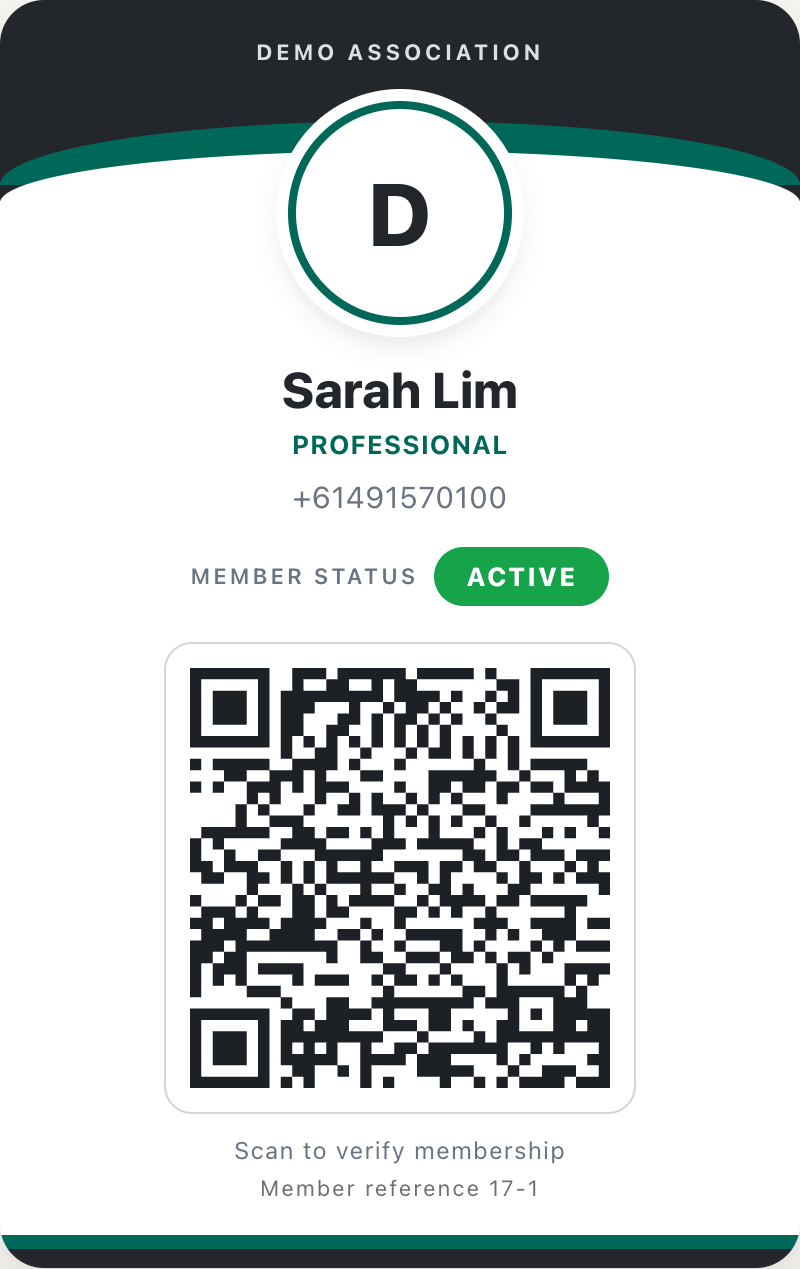
Where members find their card
Signed-in members open Card in their member portal menu. From there they can:
- show the card on their phone screen at the door;
- Download PDF for printing;
- Print / Save as PDF straight from the browser.
The card also appears from their profile and membership pages in the portal.
Where admins find a member's card
Open any member and use the Membership card button to view their card, or Card PDF to download it directly. This is the same card the member sees, and both are drawn from the same live data, so the two can never disagree.
The QR code - live verification for anyone
Every card carries a QR code, and it is what lets anyone check the card is genuine:
- Scanning needs no login and no app. Anyone (door staff, a partner venue offering member discounts, another club) points their phone camera at the code and gets the member's live card page: name, level, and ACTIVE or INACTIVE, straight from your records at that moment.
- A printed or screenshotted card can go out of date, but the QR can't. The code doesn't hold the status itself, it links to it. If the membership lapses next month, a scan of the card printed today says INACTIVE.
- The status is deliberately a simple yes/no. A scan answers one question (is this person a current member?) without exposing anything an ordinary plastic card would not show.
- Each card's link is its own long, unguessable code. Nobody can browse or guess their way to members' cards; only someone shown the card (or its QR) can open it.
Status is live in both directions. A member who renews sees their card flip back to ACTIVE immediately, with no reprint and no reissue. The card in their pocket simply becomes valid again.
Printing physical cards - CR80 PDF
The Download PDF button produces the card in CR80 format (54 × 85.6 mm, portrait), the standard size used by plastic card printers and the same as a bank card or driver's licence.
- Send the PDFs to any card-printing bureau or print them on an office card printer that takes CR80 blanks.
- The QR code prints crisply and scans from the plastic card exactly as it does from a screen.
- No card printer? The PDF prints fine on paper too. Members can cut it out or keep it folded in a wallet, and the QR still works.
Keeping track of which cards you have printed
Posting physical cards is usually a job you do in batches, over several days, working from a list, and the thing that tends to go wrong is losing your place. Anggota tracks it for you.
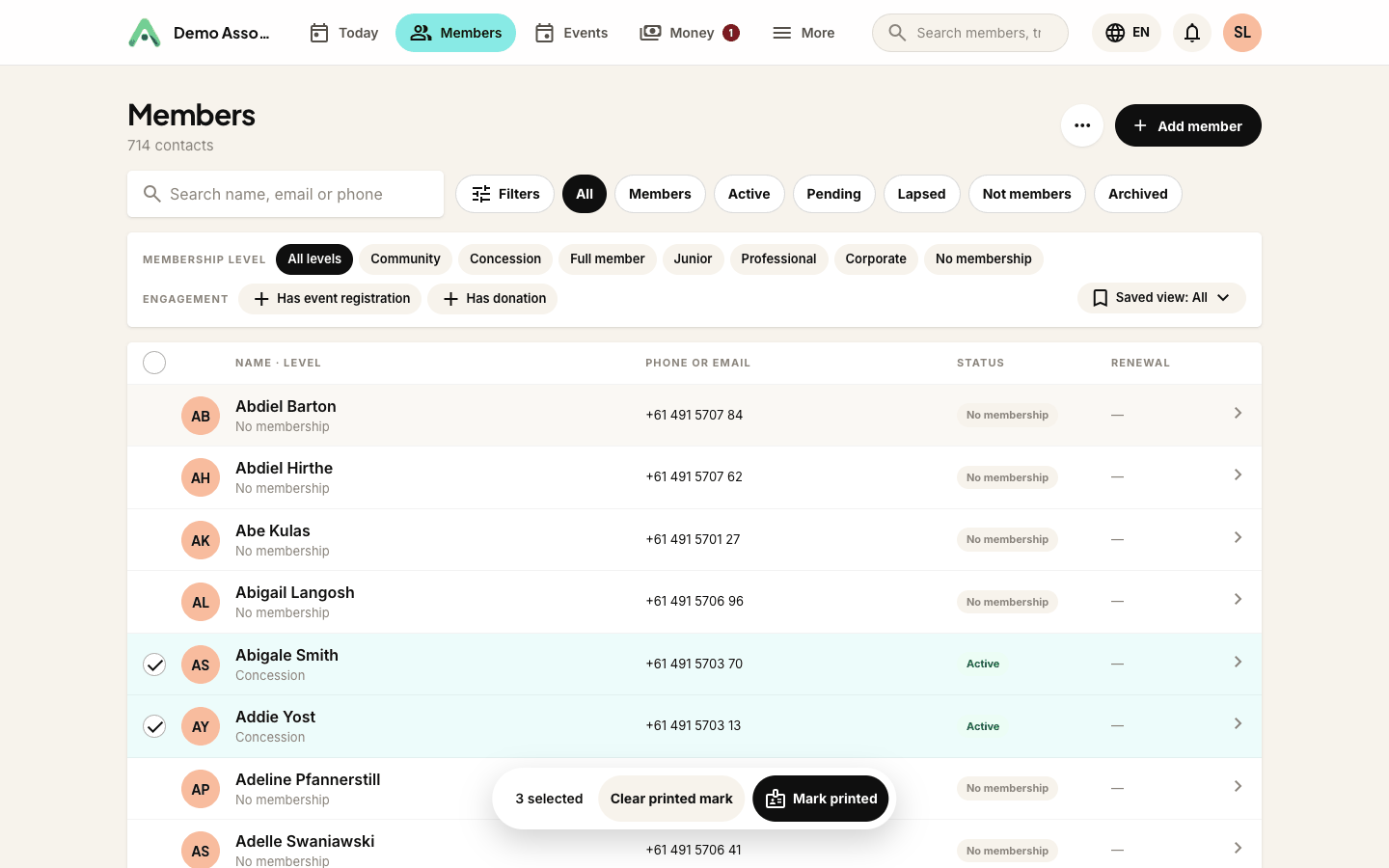
On a member's record, the Membership card panel has a Printed? button that records theirs has been done; click it again to clear the mark if you made a mistake. In the members list, a small card icon beside the name shows who already has one, so you can see the state of the whole membership at a glance.
For a real print run, work from the members list: tick the members you have done and use Mark printed in the bar that appears. Clear printed mark undoes a batch the same way.
There is one setting worth knowing about, on the membership level: Clear the printed-card tick when this membership renews. Turn it on for a club that posts a fresh card every cycle, and each renewal puts that member back on your to-print list automatically. Leave it off (the default) if your card is permanent or printed once.
Designing your card
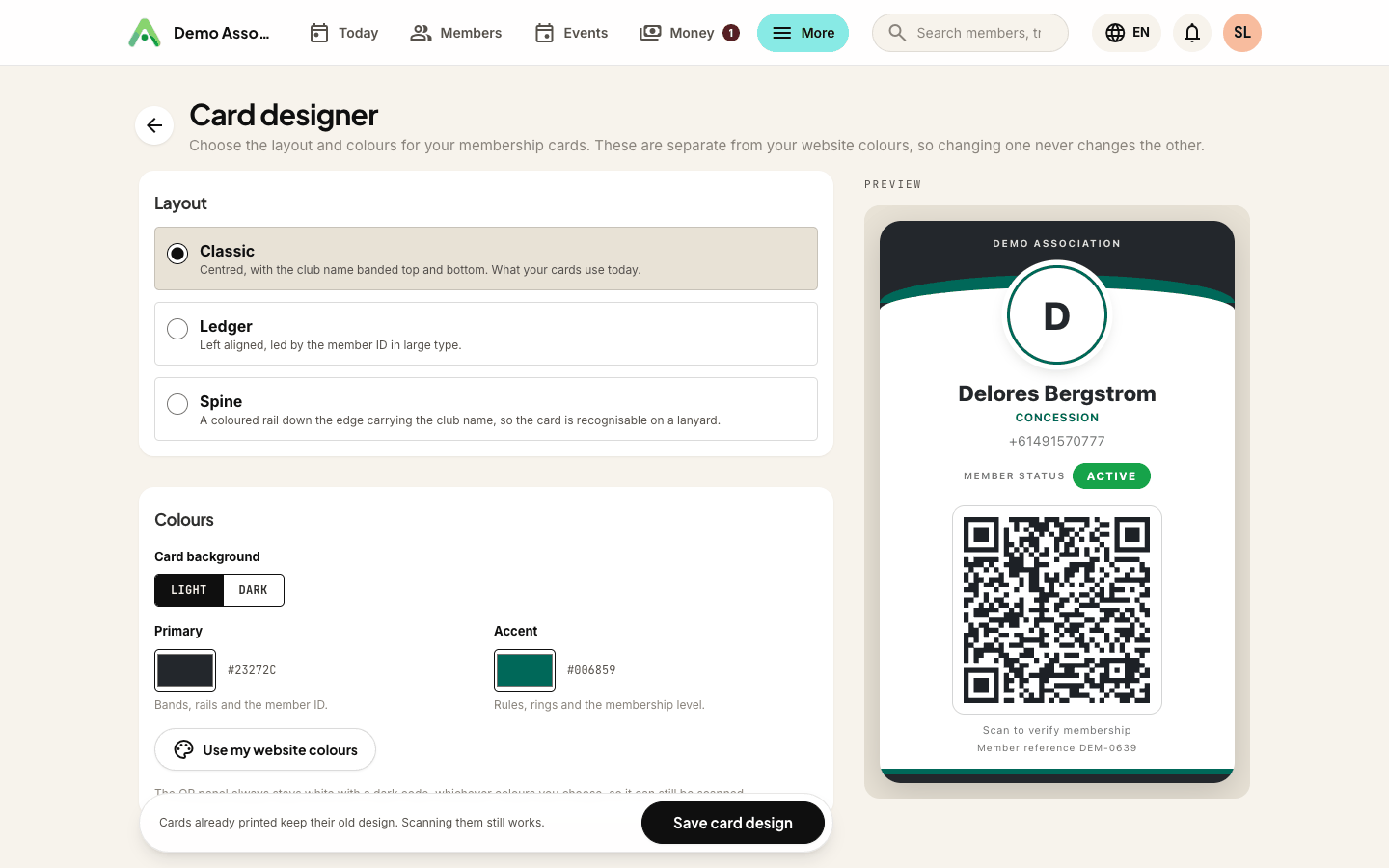
Open More → Settings → Membership → Open card designer to choose how your cards look. A live preview updates as you change things.
Three layouts:
| Layout | What it looks like |
|---|---|
| Classic | Centred, with the club name banded top and bottom |
| Ledger | Left aligned, led by the membership number in large type |
| Spine | A coloured rail down the edge carrying the club name, so the card is recognisable on a lanyard |
Colours are the card's own. They are kept separate from your website colours deliberately, so restyling your site never quietly restyles everyone's card. Choose a light or dark card background, then a primary colour (bands, rails and the member ID) and an accent (rules, rings and the membership level). If you would rather they match, Use my website colours copies them across in one click.
Two things the designer takes care of for you:
- If a colour is too close in tone to the card background, text using it is lightened so it stays readable. Blocks of that colour are unaffected.
- The QR panel always stays white with a dark code, whatever colours you pick, so it never stops scanning.
Cards already printed keep their old design. Scanning them still works, because the QR links to live data rather than to a look. Nobody needs a reprint because you changed the layout.
What a scan opens
Under Settings → Membership you choose what someone sees when they scan a card's QR code:
- Online membership card showing active member status (the default) - name, level, and whether the membership is currently active.
- Online web page showing full member details - the fuller record, including their club member ID and contact details.
The QR code itself does not change, so this applies to cards already printed. Switch it and every card in every wallet follows.
Switching cards off
Cards are on by default. To turn them off, open Settings → Features and untick Membership card (printable in member portal). The portal menu item disappears, the admin buttons hide, and scanned QR links stop resolving.
Still stuck? Reach your Anggota contact and we will walk you through it.
mailContact us