

EN, Language: English
Language
EN, Language: English
Help centre
Guides and answers for running your organisation on Anggota.
Giving your team access
Anyone who helps run the organisation (a treasurer, a secretary, the person who manages events) can be given access to the workspace. You do it from their contact record, so there is no separate list of "users" to keep in step with your members.
Give someone admin access
- Open the person under Contacts and click Edit.
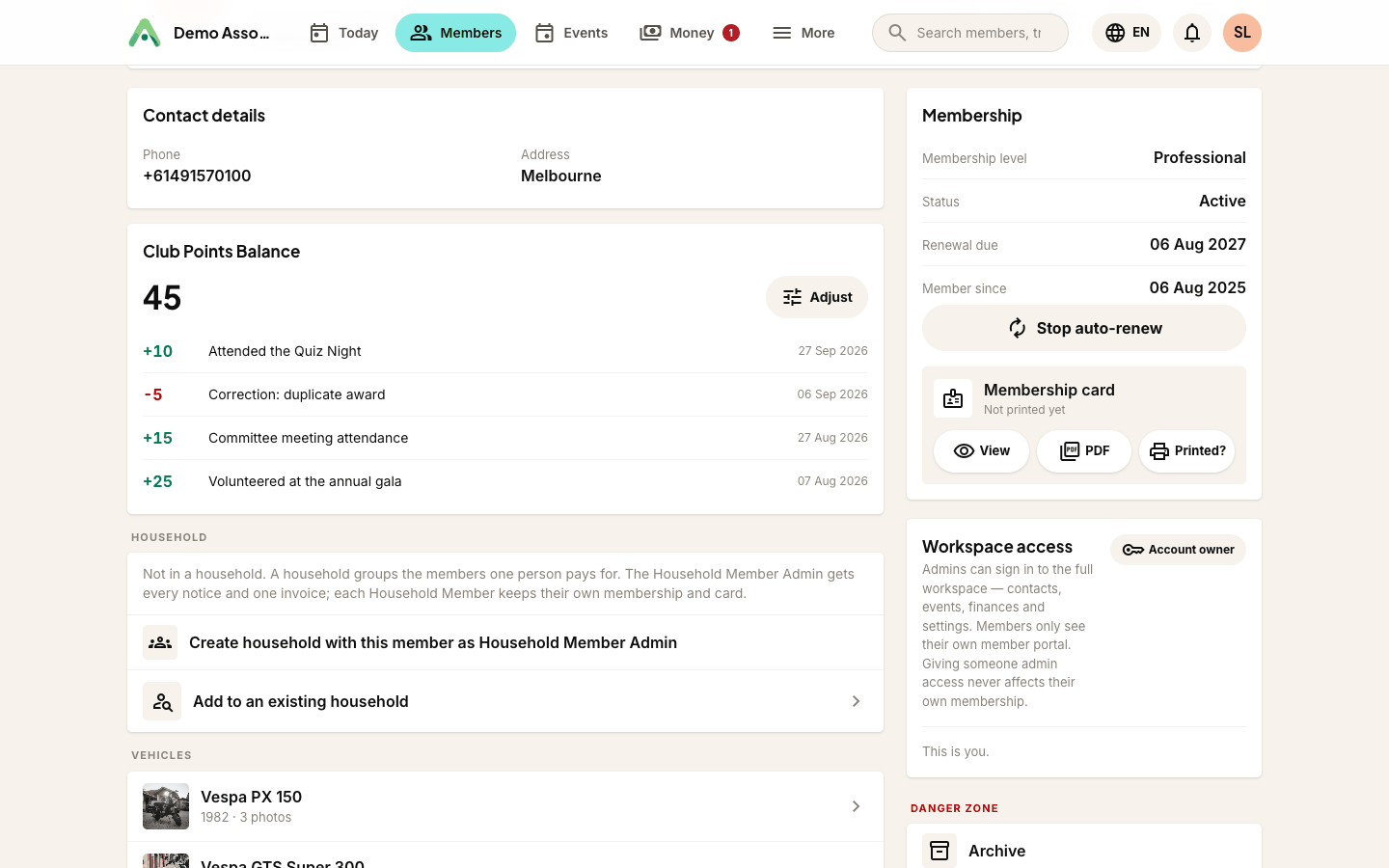
- Scroll to Workspace access.
- Click Make admin.
If they have never signed in before, leave Email them a sign-in link ticked and they will receive the same passwordless link members use. Anggota creates their login for you, so there is no separate invitation to chase.
The contact needs an email address first. Without one the button is disabled, with a note telling you why.
Giving someone admin access never touches their membership. A committee member who is also a paying member stays a paying member.
What the badges mean
The panel shows exactly one badge for where the person stands:
- Account owner - an admin who also receives billing and account notifications
- Admin - full access to the workspace: contacts, events, finances and settings
- Member - no workspace access; they only see their own member portal
Taking access away
Click Remove admin access. They keep their membership and their member portal, and only the workspace door closes.
A few sensible guardrails stop the account locking itself out:
- You cannot remove your own admin access - ask another admin to do it.
- You cannot remove the last admin - give someone else access first.
- The account owner always keeps admin access. Transfer ownership before removing them.
Handing over ownership
Only the current owner sees Make account owner. Use it when you hand the organisation to a successor: billing and account notifications move to them, and you stay an admin.
Every one of these changes is written to your audit log, so there is always a record of who granted or removed access, and when.
Tip: only an admin can grant access. If you can't see the Workspace access panel on a contact, you are signed in with an account that doesn't have the rights to change it.
Your own account
Everything above is about other people. Your own details live under My account, in the menu behind your initials at the top right, and nothing there touches the organisation's settings.
- Your name - how you appear to the rest of the team.
- Sign-in email - the address you sign in with, and where password resets go. Change it and we send a verification link to the new address.
- Language - the language you see across the workspace, on any device. It is your choice alone; it does not change what your members see. That is the organisation's default language.
- Password - optional. Anggota signs you in with an emailed link by default; set a password here if you would rather type one. Changing it signs you out of trusted devices.
Looking for your membership of the organisation, or the organisation's own profile? Those are elsewhere, and My account links to both so you do not have to hunt.
Still stuck? Reach your Anggota contact and we will walk you through it.
mailContact us