

EN, Language: English
Language
EN, Language: English
Help centre
Guides and answers for running your organisation on Anggota.
Reminders and announcements
Anggota sends two kinds of email around an event: reminders, which go out automatically before it starts, and announcements, one-off messages you send to whoever you choose.
Standard reminders
Set the reminders your whole organisation uses under More → Settings → Reminders. There are two sets:
- Membership renewals: sent to a member before their renewal date
- Events: sent to an event's registrants before it starts
To add one, choose how far ahead to Send (a number, plus days or weeks), pick the template it should use, and click Add reminder. Reminders are listed longest lead time first, so "2 weeks before" sits above "1 day before".
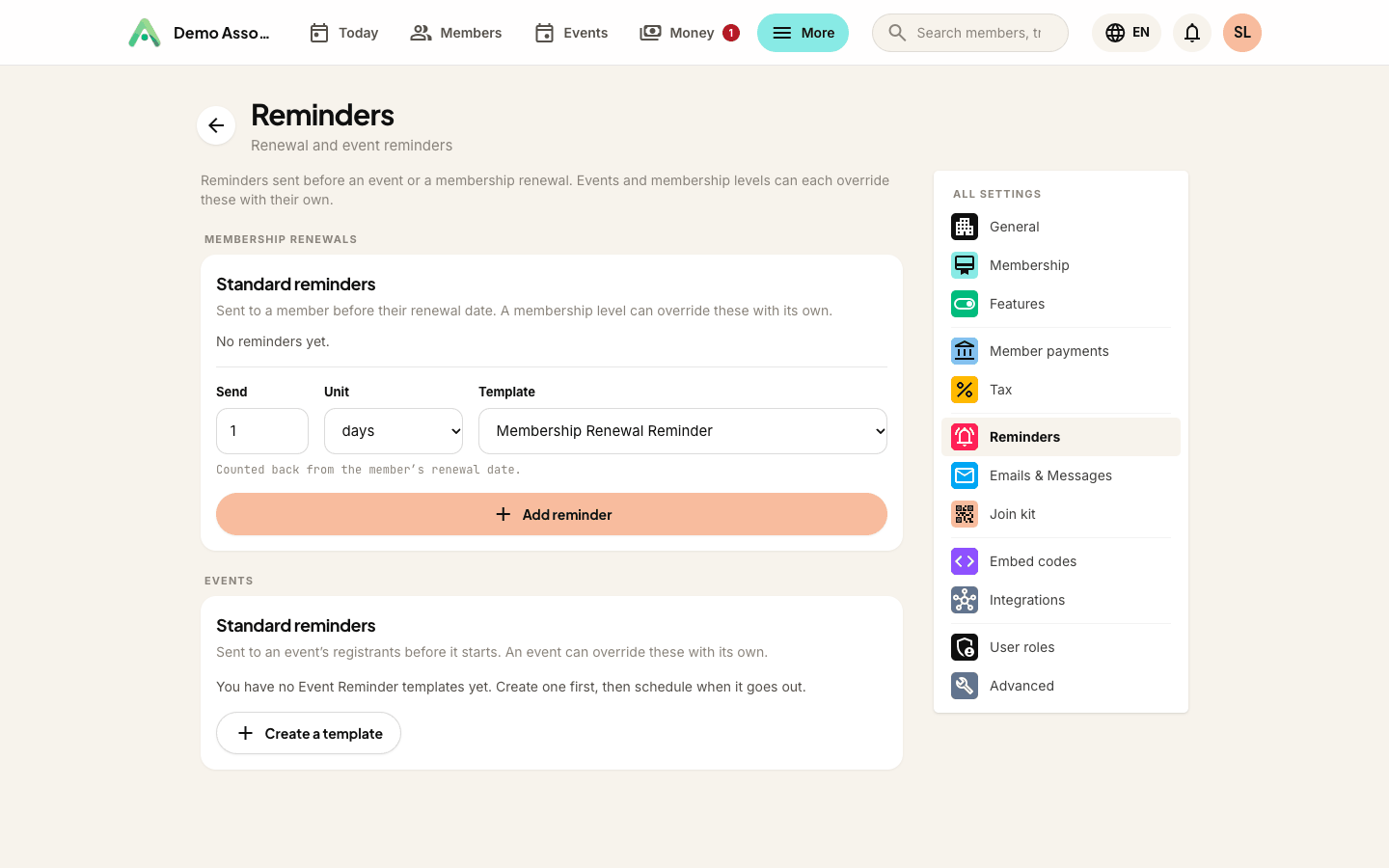
New organisations start with two renewal reminders - One week before and The day before - and no event reminders at all, because what suits a weekly class rarely suits an annual gala. Add the ones your events need.
You can only schedule a reminder if you have a template of the right type: Event Reminder for events, Membership Renewal Reminder for renewals. If you have none, the card offers a Create a template button. You can keep several of each, named for their job - "Two weeks before", "Day before", "Venue change" - and the name is only ever shown to you.
Removing the last reminder in a set asks you to confirm, because it means nothing at all will be sent.
Reminders for one event
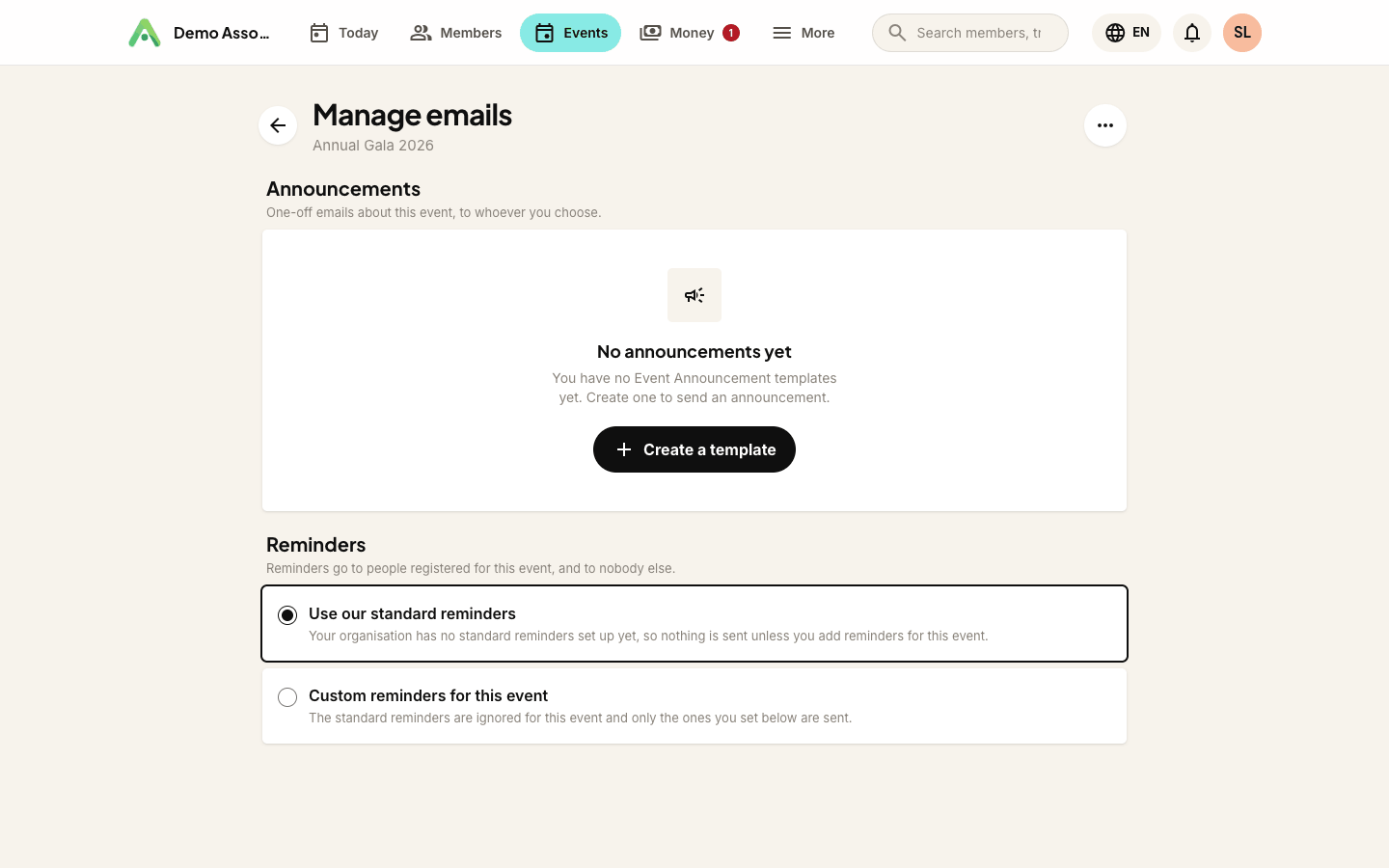
Standard reminders apply to every event automatically. When one event needs something different, open the event, go to its Emails tab and click Manage next to Reminders. You can also click Manage emails on that event's row in the events list.
The Reminders section lists the standard reminders that currently apply. Tick Set up custom reminders for this event and the standard set is ignored for this event only - you then build its own list in exactly the same way. Untick it later and the standard reminders come back; the event's own list is kept in case you want it again.
Membership levels work the same way: open a level, click Manage emails, and tick Set up custom reminders for this level to give that level its own renewal reminders.
Announcements
An announcement is a one-off email about an event, for example a venue change, a car-parking note or a thank-you afterwards. Create one in the Announcements section of the same Manage emails page (from the event's Emails tab, click Manage next to Announcements).
- Choose the template to send (an Event Announcement template).
- Choose who gets it. There are three audiences:
- Groups and people I pick: tick any number of contact groups, add individual people one at a time, or both. Nobody is emailed twice, even if they appear in two groups.
- All current members: everyone holding a membership, including those inside their renewal window.
- All contacts: everyone on your contact list, member or not.
- Choose when to send: Send now, or Send later with a date and time.
The audience is worked out when the email actually sends, not when you schedule it. Schedule an announcement to all current members a fortnight out and it goes to the membership as it stands on the day - someone who joins next week is included, someone who lapses is not. That is almost always what you wanted, but it is worth knowing before you schedule far ahead.
Anyone who has turned off event announcements in their portal, or whose address has bounced, is left out of every one of the three options.
Scheduled announcements are checked every hour, so one goes out at or shortly after the time you set. The list shows each announcement's template, who it went to, and whether it is Sent, Scheduled or Not sent - with a Send now button for anything still waiting. An announcement that has already gone out can't be sent twice.
Who actually receives what
- Event reminders go only to people registered for that event - confirmed registrations and those still awaiting payment. Nobody else on your list is emailed.
- Renewal reminders go to members whose renewal is coming up. For a household or group membership, only the coordinator is reminded, not every person on the plan.
- Announcements go to the audience you chose - the groups and people you picked, all current members, or all contacts - minus anyone who has opted out of announcements or whose address has bounced.
Reminder timing is counted in whole days in the event's own timezone, and Anggota keeps track of what it has already sent, so nobody gets the same reminder twice.
Tip: write the template first, under More → Emails & messages, then come here to say when it goes out. The two jobs are kept separate on purpose, so one template can serve several schedules.
Still stuck? Reach your Anggota contact and we will walk you through it.
mailContact us