
EN, Language: English
Language
EN, Language: English
Help centre
Guides and answers for running your organisation on Anggota.
Your subscription and trial
This article is about what your organisation pays Anggota: your free trial, your plan and how to pay us. What your members pay you is set up separately, under More → Settings → Member payments (see payment options).
Where to find it
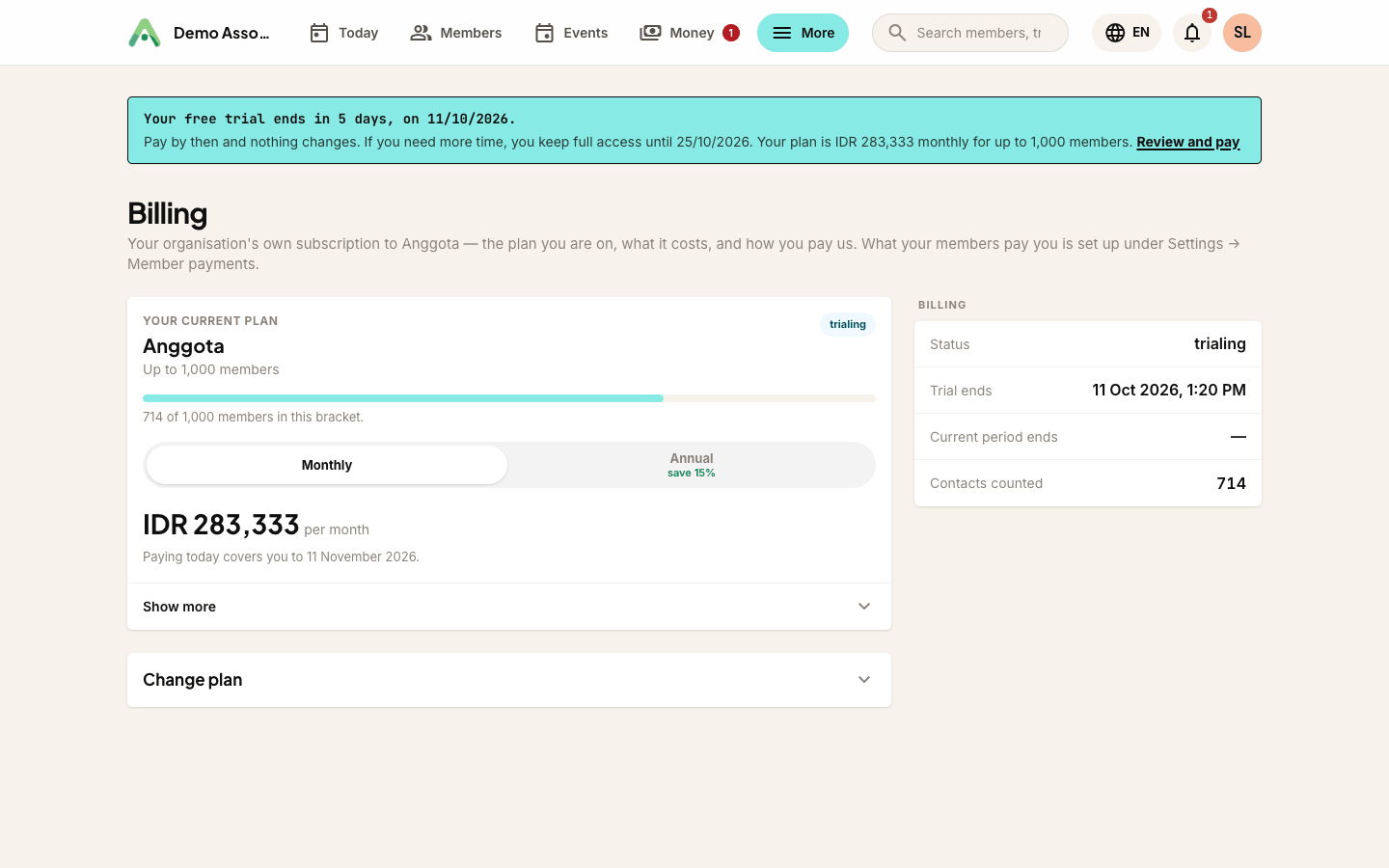
Click your initials at the top right and choose Billing & Saldo. It opens Billing, which shows your status, when your trial or current period ends, how many contacts are counted, your plan and its price.
Only the account owner and organisation admins see Billing & Saldo. Other team members do not, since they cannot change what the organisation pays.
Your free trial
Every new organisation starts on a 30-day free trial with full access. Nothing is charged automatically at any point, and there is no card to enter to start.
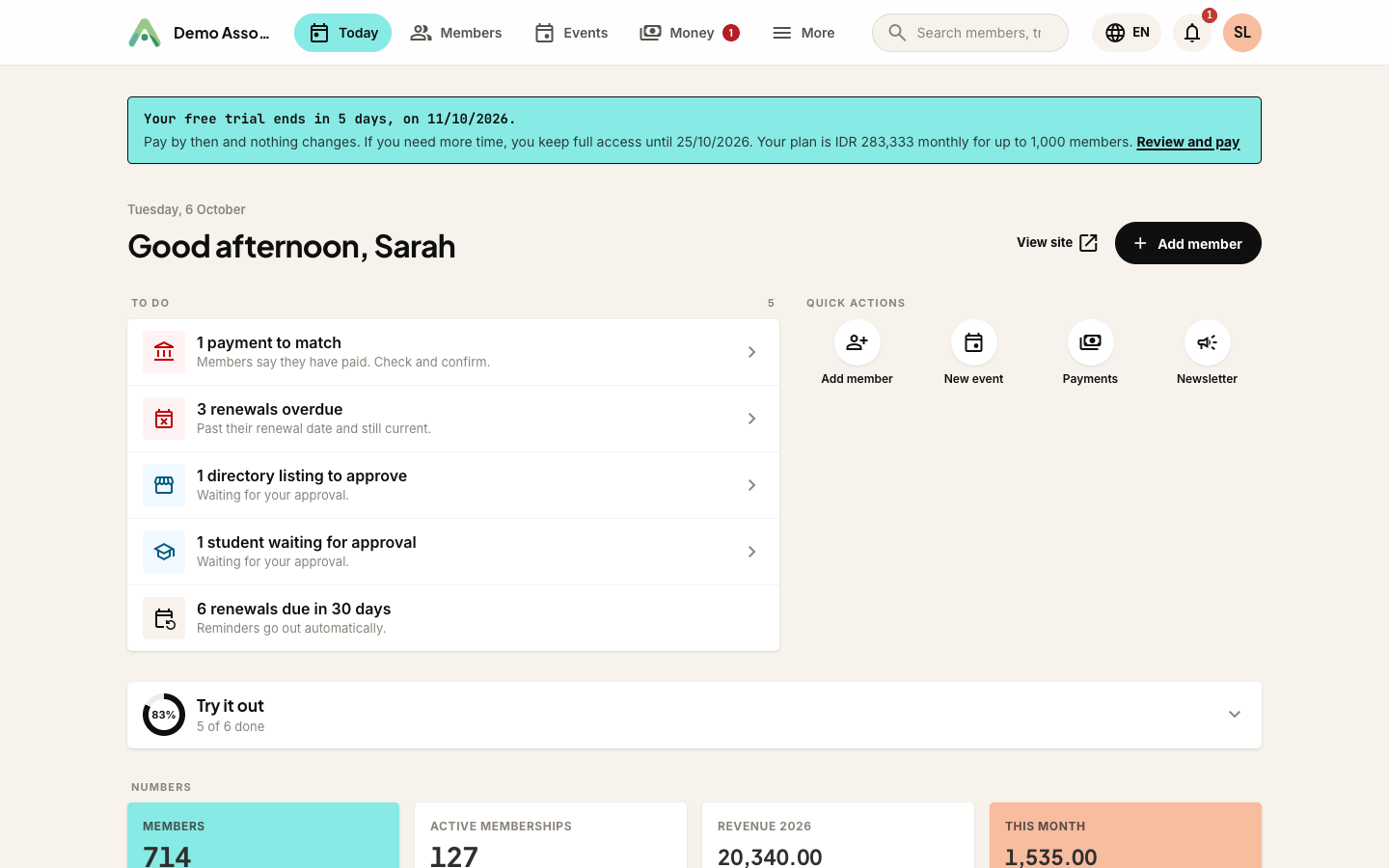
- Your Today screen shows when the trial ends.
- In the last 7 days a banner appears at the top of every screen: Your free trial ends in 5 days, on ..., with your plan's price and a Review and pay link.
- The banner shows to everyone on your team. People who cannot pay see Your organisation's owner or an admin can pay instead of the link, so they know who to tell.
You can pay before the trial ends. Paying early does not cost you any trial days: your paid period starts from the day the trial would have ended.
When the trial ends
The trial's end date is when your first payment falls due, not the day the doors close.
- On the day the trial ends, we email your organisation's Contact email with the amount due and a Pay now link. No sign-in is needed to pay from it.
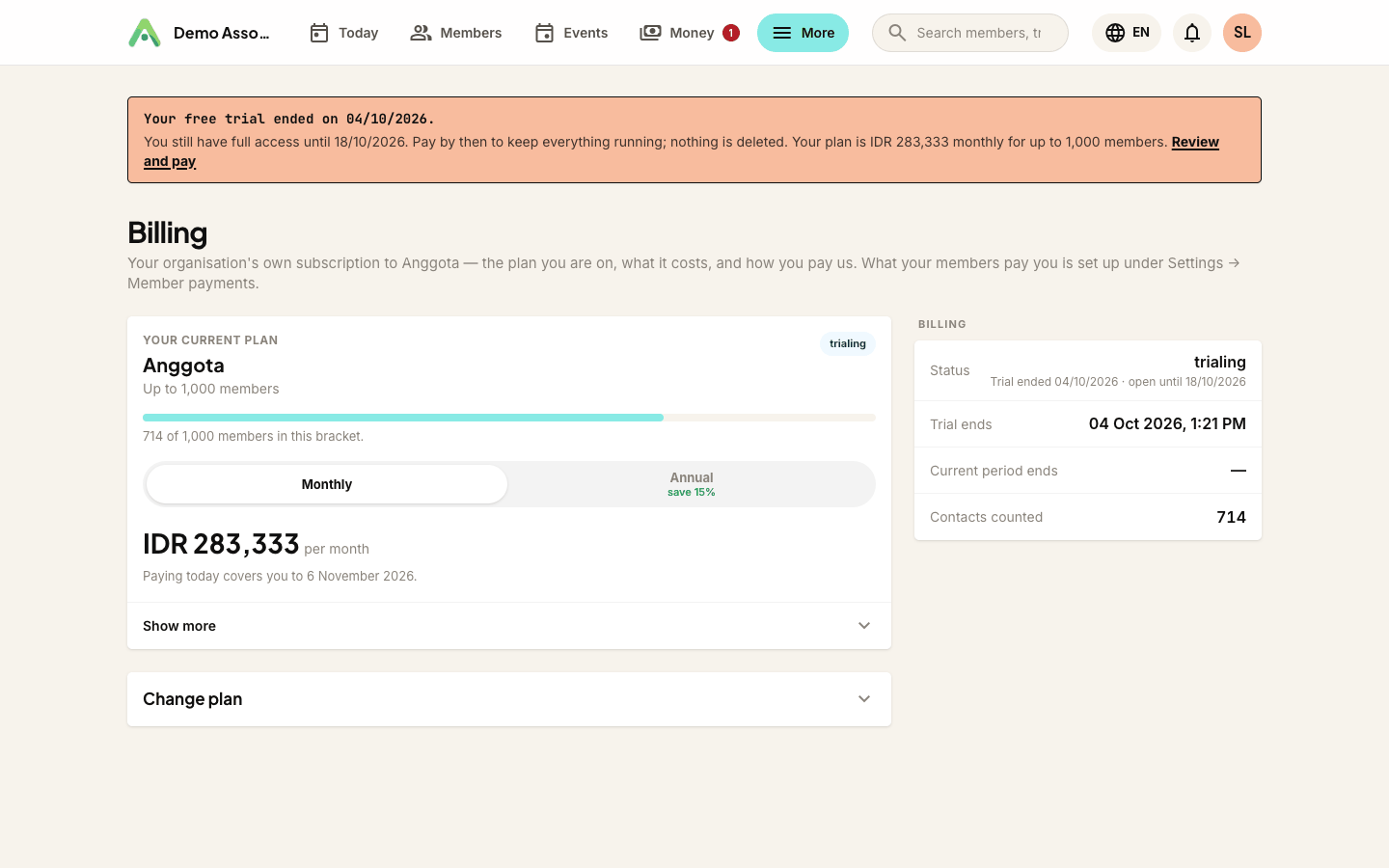
- Your workspace stays fully open for 14 more days. The banner changes to Your free trial ended on ... and tells you the date you have until.
- The Billing page shows Trial ended ... · open until ... and a Payment due panel with a Pay now button.
Need more time, or want to take it to your committee first? Reply to the trial-ended email and tell us.
If you do not pay in time
If nothing has been paid by the end of those 14 days, your organisation pauses:
- Members cannot sign in to the member portal.
- Admins can still sign in, but only reach the billing page. Every other screen sends you back there, so you can settle up.
- Team members who cannot manage billing see a note asking them to contact the owner or an admin.
Nothing is deleted. Your members, levels, events and website are exactly as you left them. Pay at any time and everything switches straight back on.
How to pay
Open Billing & Saldo and use Pay now (or Convert to Paid Plan Now during the trial). You can also use the link in any billing email. The pay page offers:
- QRIS - scan the code with any Indonesian banking or e-wallet app.
- Bank transfer - to our bank account, shown on the page.
- Card or online banking - where offered, through our payment provider.
Paid by QRIS or transfer? Tell us on the pay page with I have paid. You can add a reference and a screenshot. We confirm it, and you get a receipt email once it is received.
Annual or monthly
New organisations are billed annually by default, which includes a discount shown on the billing page. You can switch to Monthly under Billing rhythm on the same page, and the amount due updates to match.
Moving from monthly to annual is always possible, although once you have paid for a year you cannot switch back to monthly part way through it. Get in touch and we will sort it out.
After your first payment
Each time a paid period ends, a new payment falls due and we email the pay link again. The same 14 days apply: your workspace stays open while you pay, and only after that is it suspended until the payment arrives.
Tip: billing emails go to the Contact email in your organisation profile, or to the account owner if that is blank. If it is a shared inbox nobody reads, change it so your treasurer actually sees the invoice.
Still stuck? Reach your Anggota contact and we will walk you through it.
mailContact us