

EN, Language: English
Language
EN, Language: English
Help centre
Guides and answers for running your organisation on Anggota.
Events calendar
The events calendar shows your club's events a month at a time, on your Anggota website or on a website you already run. Every date of a repeating event is on it, each event type has its own colour, and members can add your events to their own calendar app in one click.
Add a calendar to your website
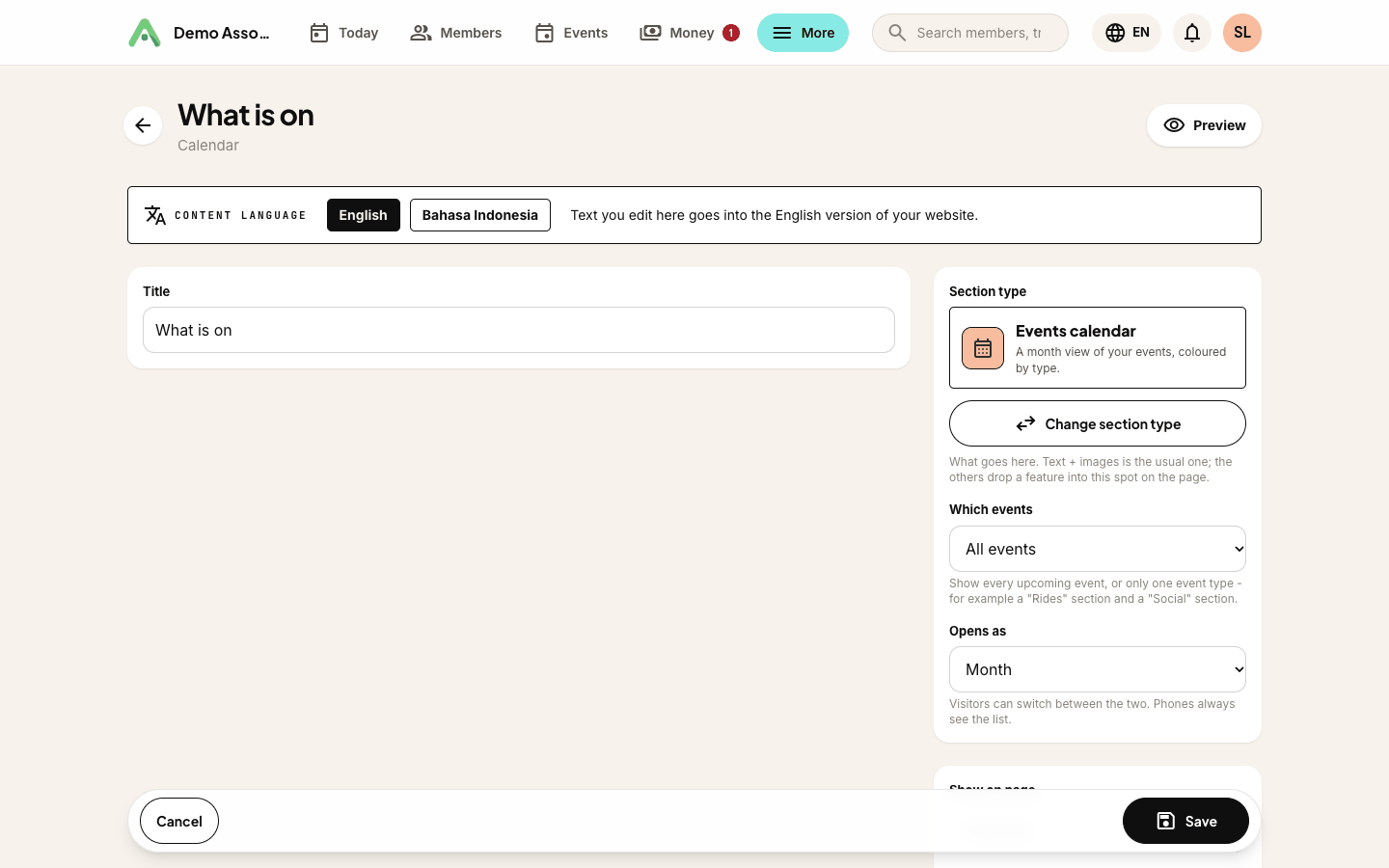
- Open More → Pages (the Website screen), stay on the Pages tab, and click the pencil beside the page you want it on. A page of its own called "Calendar" works well.
- Under Content sections, click Add.
- Under Section type, click Change section type and choose Events calendar.
- Under Which events, leave All events, or pick one event type for a calendar of, say, rides only.
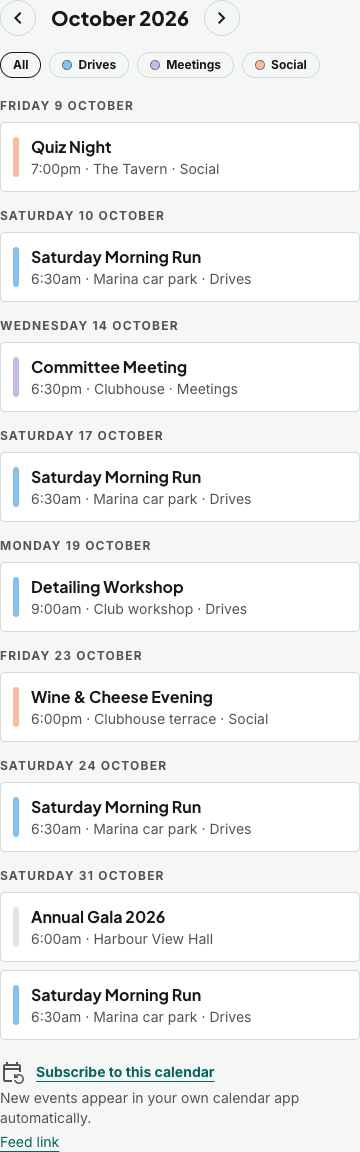
- Under Opens as, choose Month (a grid) or List (day by day). Visitors can switch between the two, and phones always show the list.
- Save.
What visitors see
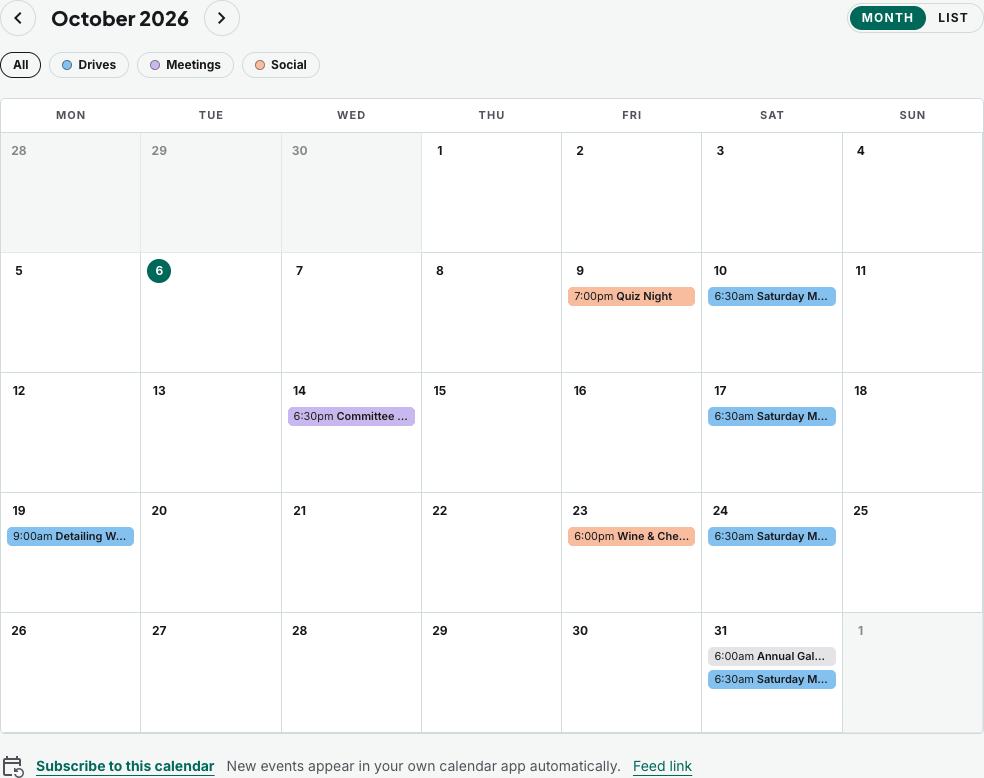
- Weeks start on Monday. Today's date is highlighted.
- Arrows move a month at a time, up to 12 months ahead and 12 months back. Today jumps back to this month.
- Type chips above the grid filter the calendar to one event type, and double as the colour key.
- Click an event to open its page, with the details and the Register button.
- Busy days show three events and a +2 more link that opens the day as a list.
On a phone the calendar is a list, grouped by day:
What is on it
- Published events only. Drafts never show, and cancelled events are hidden.
- Members-only events show only to a member who is signed in with a current membership. Everyone else never sees them.
- Repeating events show on every date they run, even beyond the weeks ahead the series has created so far. Those later dates have a dashed outline and a note that registration opens nearer the date. Clicking one opens the series' next date. See recurring events.
Event type colours
Every event type gets a colour automatically. To choose one yourself:
- On the Events list, click Manage event types, then click the type's name.
- Under Calendar colour, pick a colour, or Automatic to let Anggota choose.
- Click Save changes.
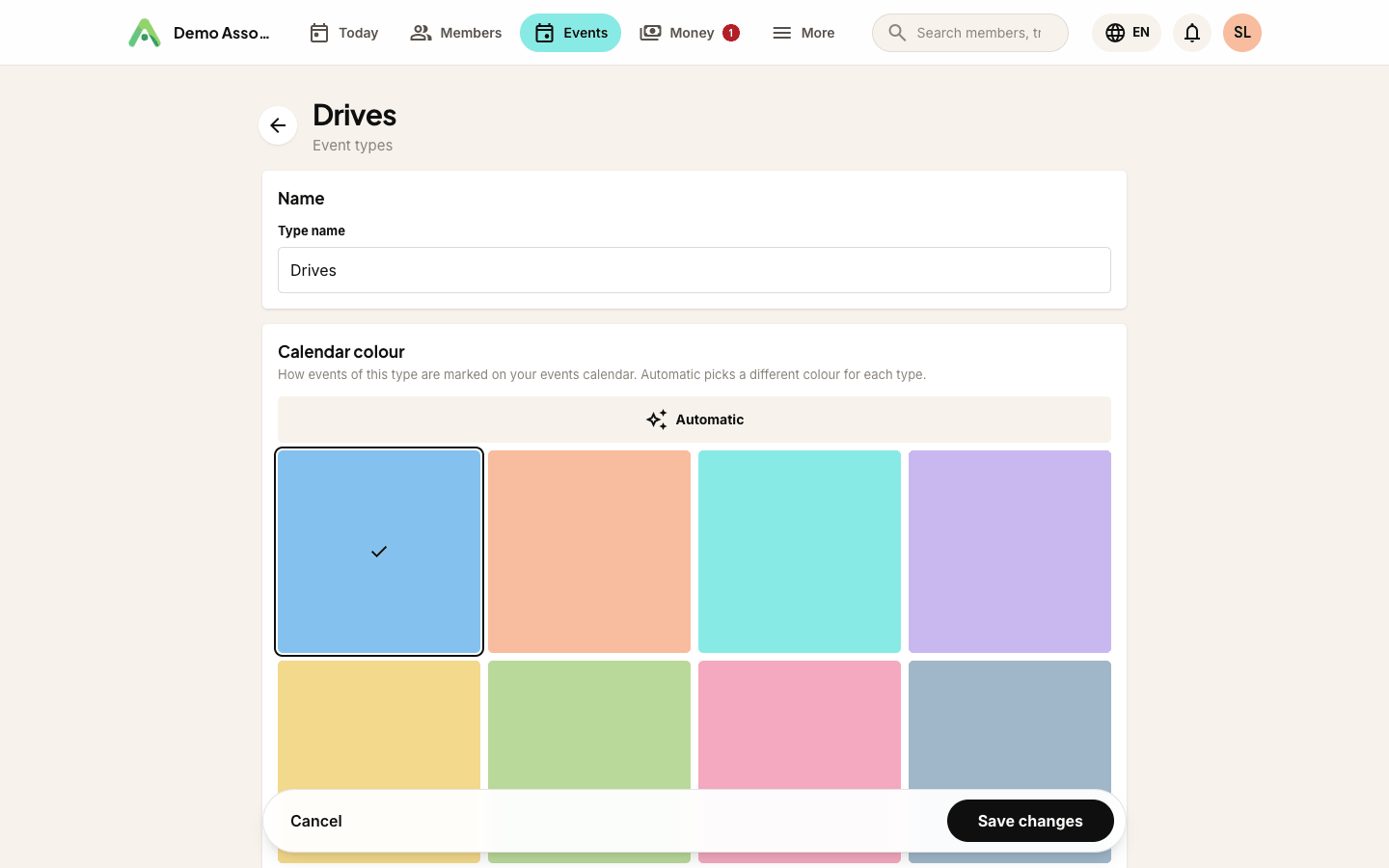
The colours are pale on purpose so event names stay readable on top of them. Events with no type are grey.
Subscribe and add to calendar
Under the calendar is Subscribe to this calendar. It adds your club's public events to Google Calendar, Apple Calendar or Outlook, which then check for changes every few hours, so new and moved events appear by themselves. Feed link is the same feed as a plain address, for calendar apps that ask you to paste one.
The feed only ever carries public events. Members-only events are never in it, because a calendar link has no sign-in and gets passed around.
Each event's own page also has Add to calendar: Apple / Outlook downloads the event as a file, and Google opens it in Google Calendar ready to save.

On your own website
If you run your own website, More → Settings → Embed codes has an Events calendar snippet. Paste it where the calendar should appear. It works the same way as the section: a month grid when there is room, a list in a narrow column or on a phone, type chips, and a subscribe link. Add data-view="list" to the snippet to always show the list, or data-event-type="3" (the number in the address bar when you edit that type) for a calendar of one type. See embedding on your own website.
Members who have signed in through the member login widget also see members-only events in the embedded calendar.
Still stuck? Reach your Anggota contact and we will walk you through it.
mailContact us