

EN, Language: English
Language
EN, Language: English
Help centre
Guides and answers for running your organisation on Anggota.
Finding people
However big your contact list gets, three tools will find anyone in it: the search box at the top of every screen, the filter beside it, and Advanced search for the harder questions.
Search from anywhere
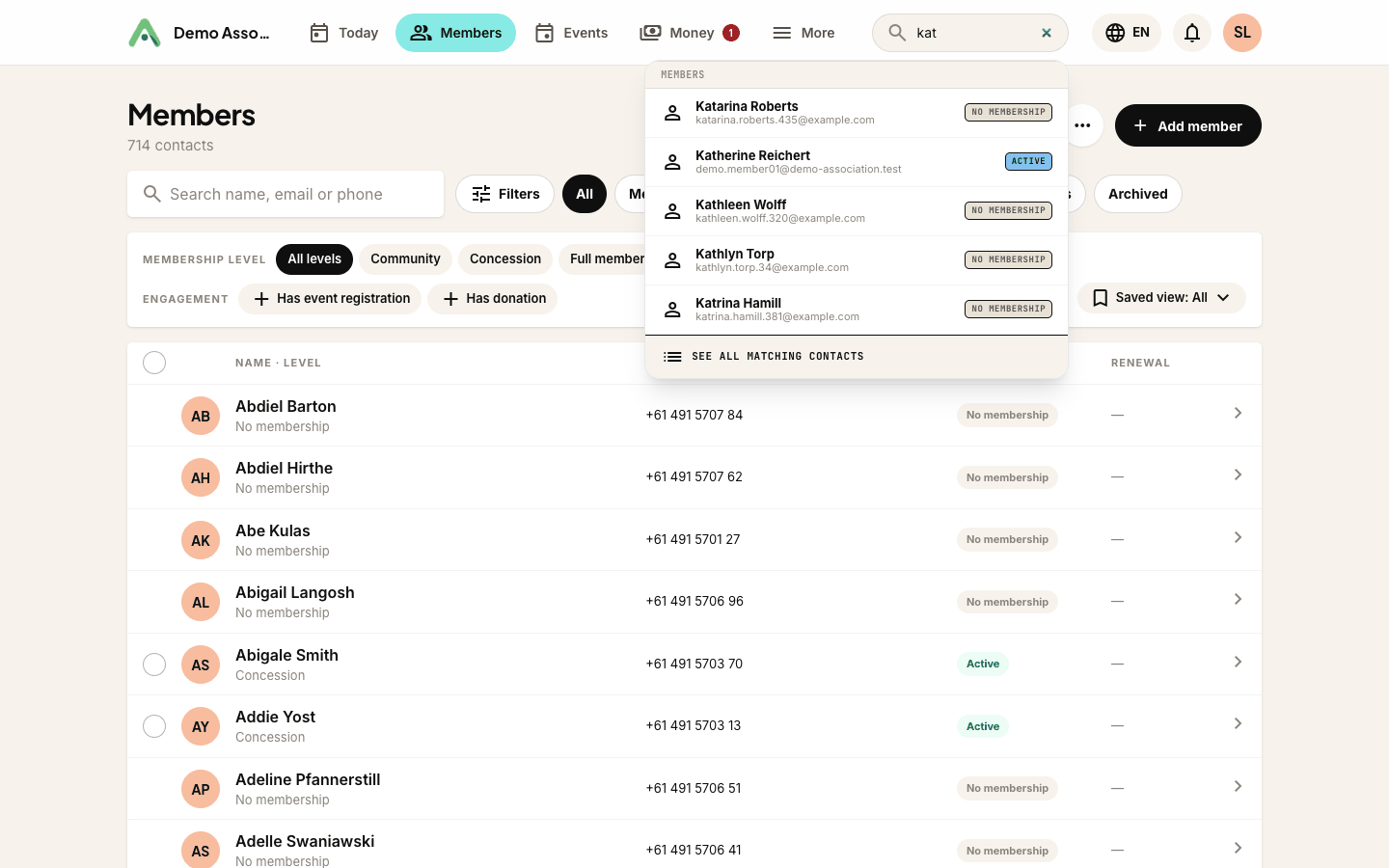
Start typing in the search box at the top of the screen, or press ⌘K (Ctrl+K on Windows) from any page. Results appear as you type, grouped into contacts, payments, invoices, events and groups.
Each person in the results carries a small badge showing where they stand: Active, Renewal pending, Archived, or No membership. That saves you opening a record just to check.
Filter by
The dropdown to the left of the search box narrows everything to one kind of contact:
| Filter | Who it shows |
|---|---|
| All | Everyone (except archived contacts) |
| Attention required | Anyone whose membership is pending, awaiting renewal, overdue or expired, or who has an unpaid invoice |
| with Membership | Contacts who hold a membership of any level |
| with Event Registrations | Anyone registered for an event, member or not |
| with Donations | Everyone who has given |
| Account administrators | People who can sign in and manage the organisation |
| Non-members | Contacts with no membership, such as enquirers, past attendees and supporters |
| with email delivery problems | Contacts whose emails have bounced or failed |
| Archived | Only archived contacts |
Two things worth knowing. Archived contacts stay out of every other view, which is the whole point of archiving them. And choosing a filter with the search box empty takes you straight to that list of contacts.
When you have typed something, the bottom of the results offers See all matching contacts, which opens the full list with both your search term and the filter applied.
Advanced search
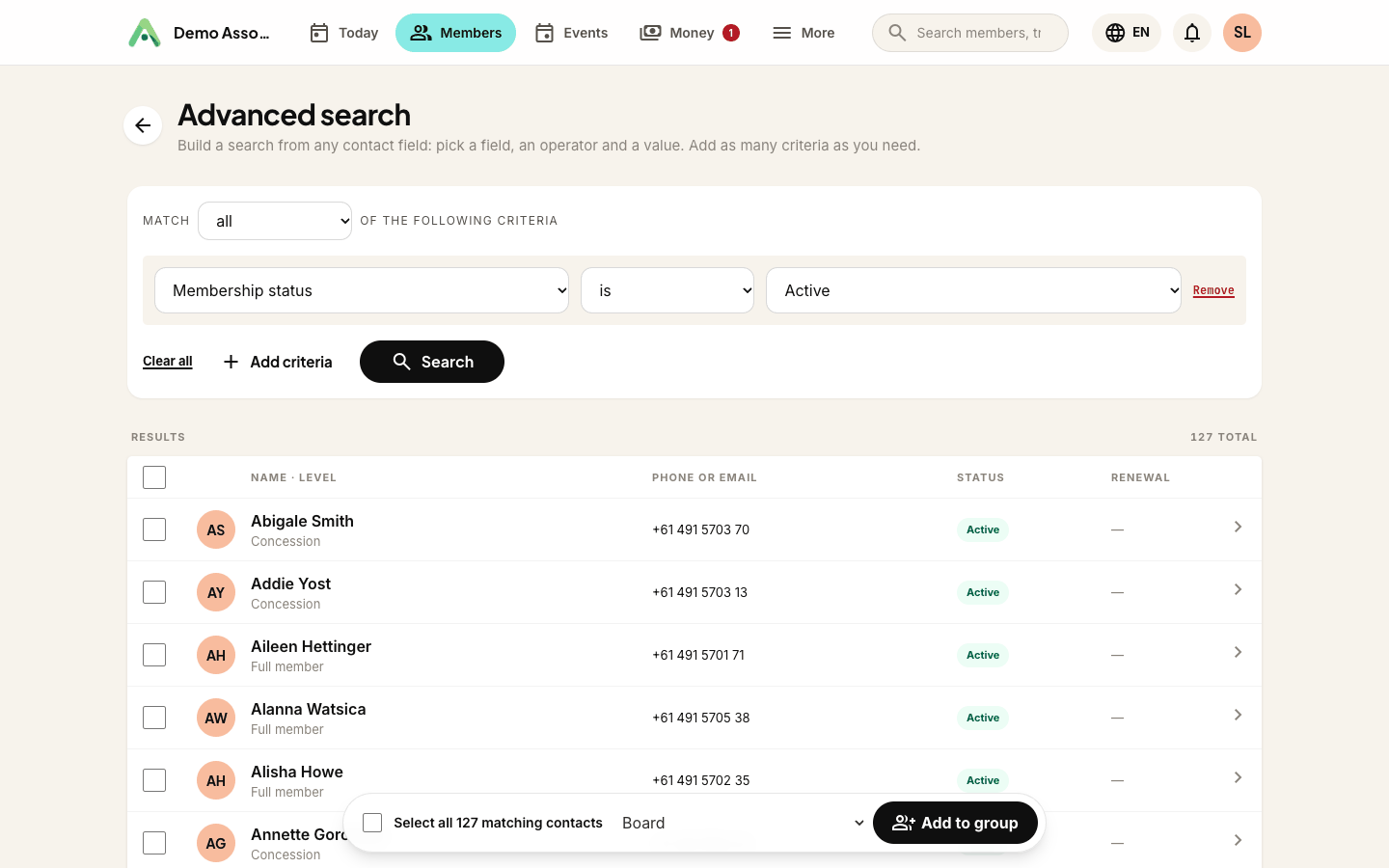
For anything the filters can't express, use Advanced search (the button to the right of the search box).
Build your question one line at a time: pick a field, choose an operator, type a value. Add as many lines as you need, and choose whether a contact must match all of them or any of them.
You can search on:
- Contact details - name, email, phone, organisation, reference, contact status, date added
- Address - address line, city, state, postcode, country
- Membership - level, membership status, renewal date, or simply whether they hold one
- Activity - has event registrations, has donations, has an unpaid invoice, is an account administrator
- Your custom fields - every contact field your organisation has added appears here automatically
The operators change to suit the field. Text offers contains, is, starts with, is empty and friends; dates offer on, before and after; a membership level gives you a dropdown of your actual levels.
A search lives in the page address, so you can bookmark one you run often, or paste it to a colleague and they will see exactly the same results.
Adding results to a group
Results carry a checkbox, and above them sits a group picker with an Add to group button. Tick the people you want, choose the group, and add them.
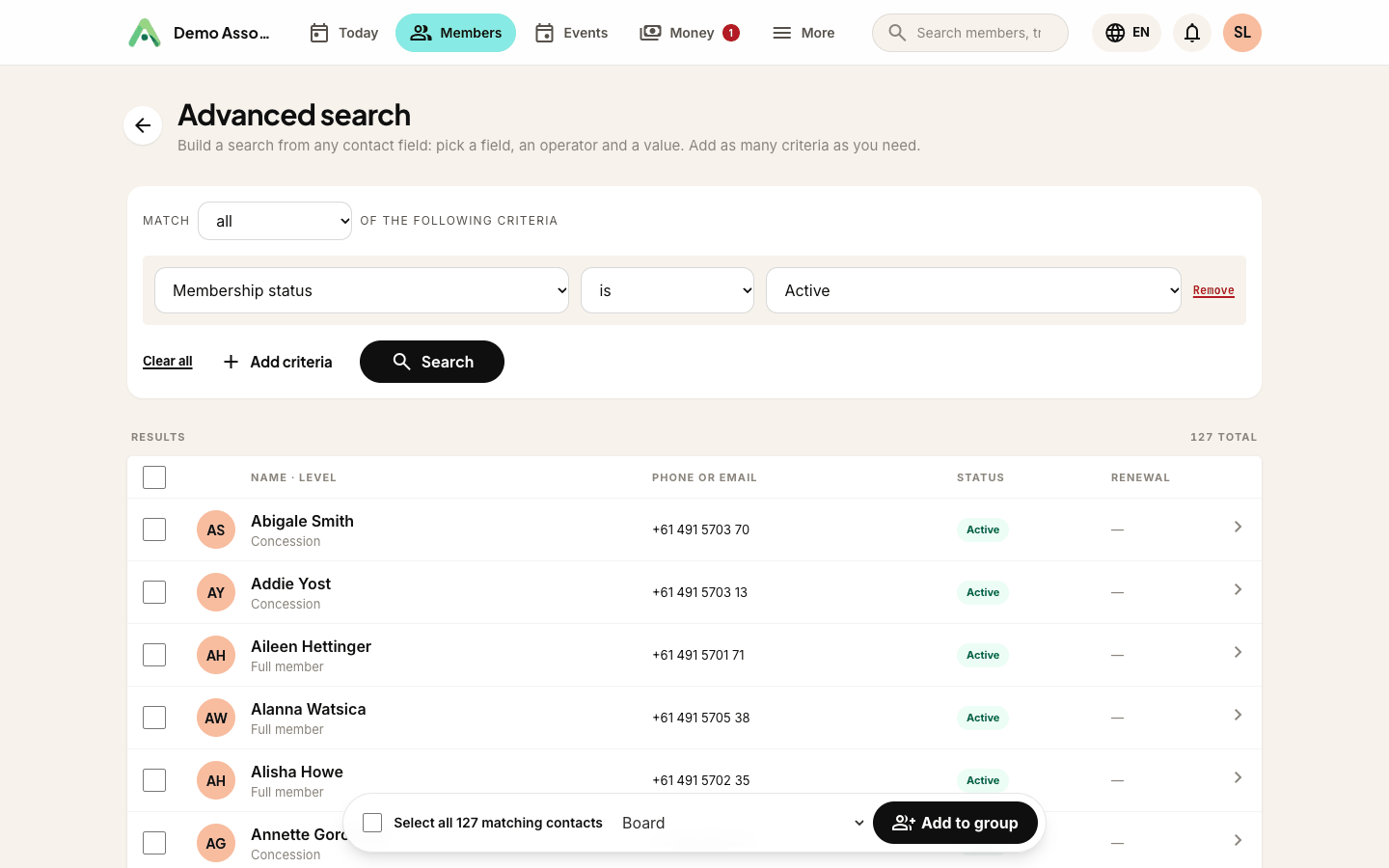
Tick the box in the table header to select everyone on the page. When you do, an extra option appears: Select all N matching contacts. Use it and Anggota adds every contact your search found, not just the ones on screen, which is handy when a search returns hundreds across several pages.
Nobody is removed from anything. Adding is safe to repeat, and people already in the group simply stay there.
Tip: the Add to group bar only appears once you have created at least one group. Set your groups up first under More → Groups.
Still stuck? Reach your Anggota contact and we will walk you through it.
mailContact us