

EN, Language: English
Language
EN, Language: English
Help centre
Guides and answers for running your organisation on Anggota.
Running your directories
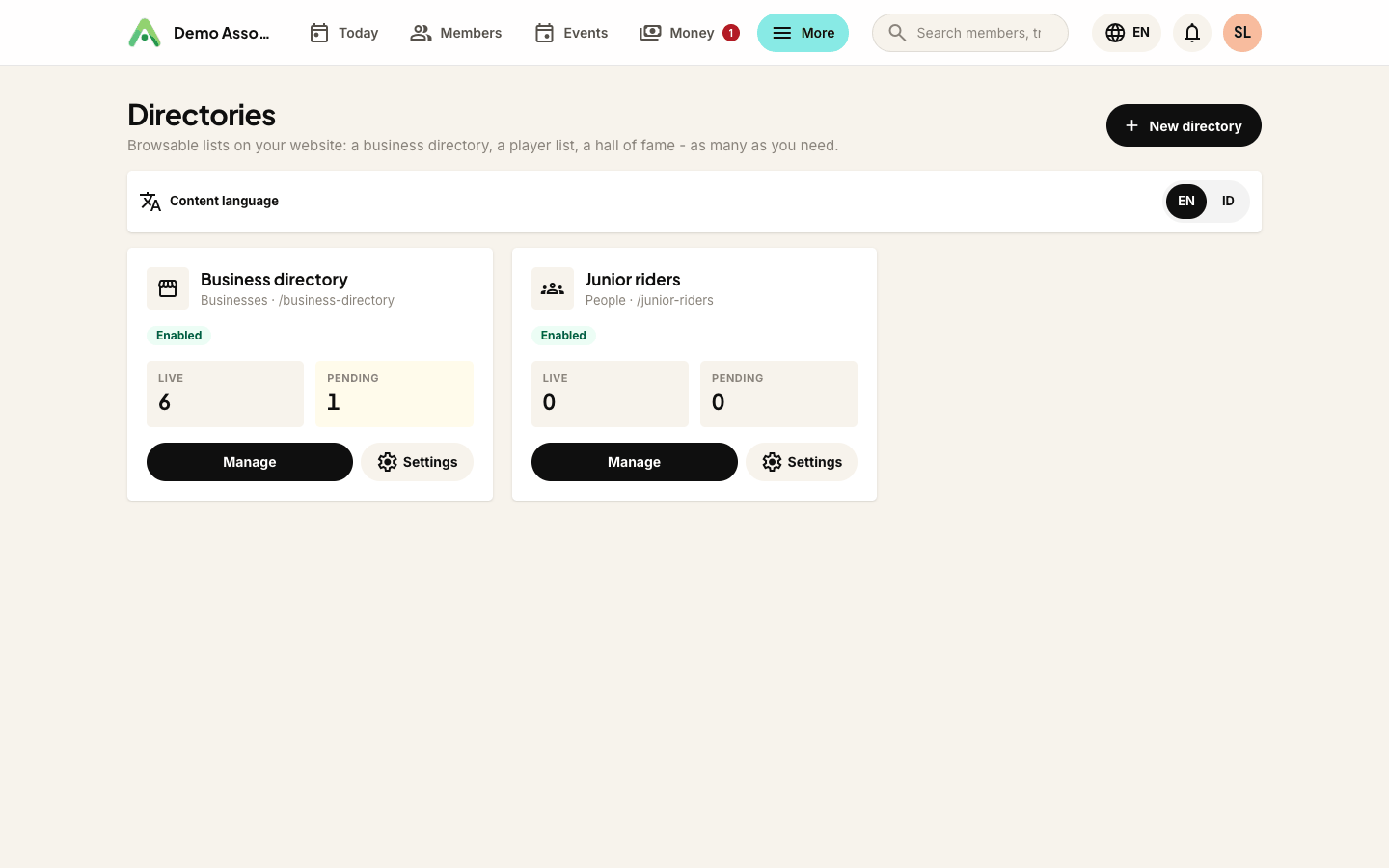
Directories are browsable lists on your website: a business directory of your members' companies, a page of players and coaches, a hall of fame, a list of venues. You can run as many as you need, each with its own categories, settings and public page.
Switching directories on
Directories are off until you want them.
- Open More → Settings → Features.
- Tick Directories - business listings, player profiles and other browsable lists and save.
Directories now appears under More, in Club modules, for anyone on your team who can manage the organisation's settings. It opens a list of all your directories.
If you used the business directory before, nothing is lost: it is now one directory called Business directory, with its listings, categories and settings carried over. Its old web addresses redirect to the new ones.
Creating a directory
- Open Directories.
- Under New directory, type a Name (for example Business directory, Players U15 or Coaches).
- Pick a Preset and click Create directory.
The preset decides the words the directory uses and the fields each entry has:
| Preset | Good for | What an entry holds |
|---|---|---|
| Businesses | Sponsors, partners and members' businesses | Contact details, location, social links and a member offer |
| People | Players, coaches, committee, a hall of fame | A photo, a role, a story, birth year and achievements. No contact details, and a consent tick before anyone goes live |
| General | Anything else - resources, venues, recipes, awards | Title, subtitle, description, image and a category |
You can't change a directory's preset later, so pick the one that fits. The directory's web address is made from its name when you create it, and stays the same if you rename it later, so links you've shared keep working.
Inside a directory
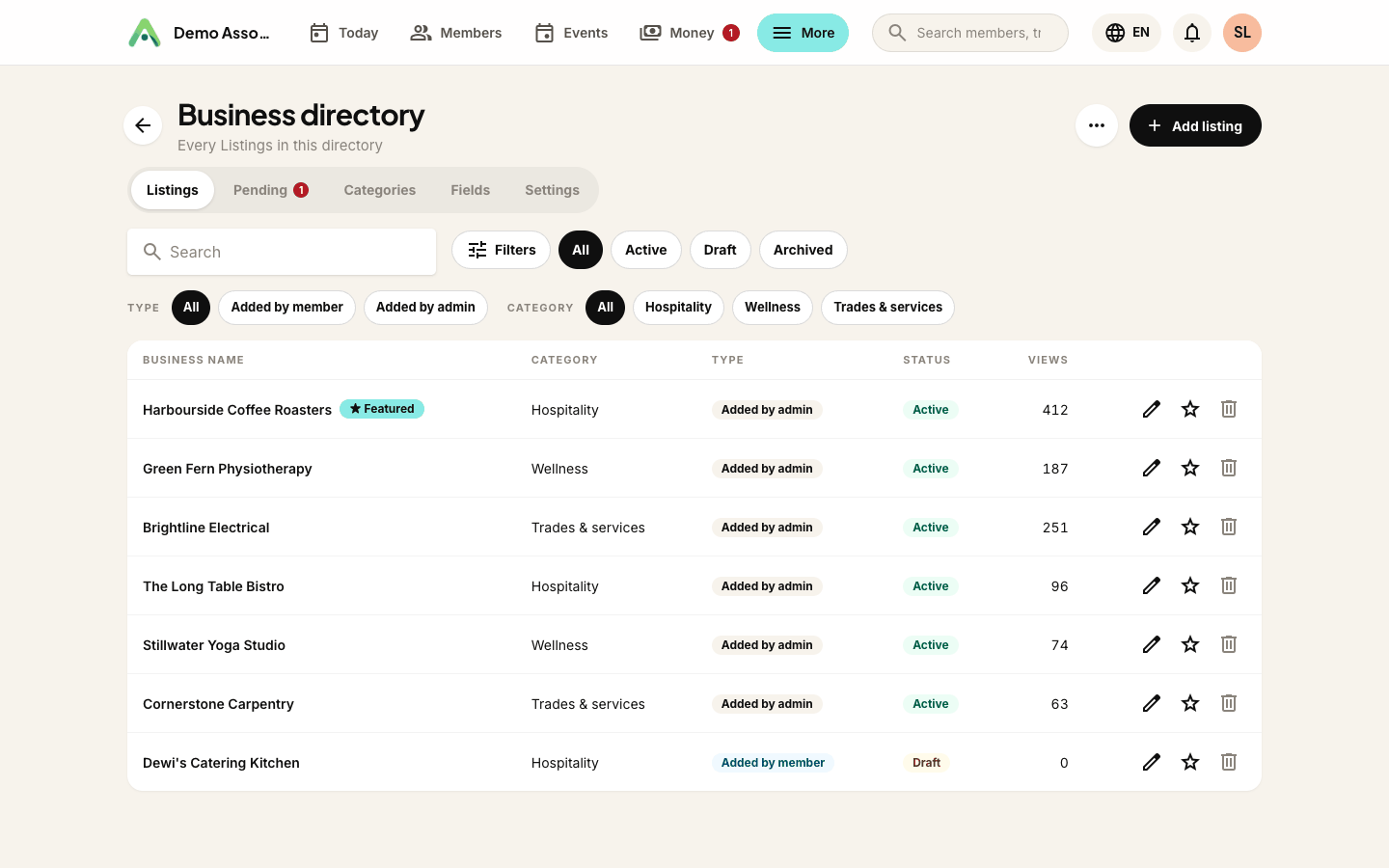
Open a directory from the list (click Manage) and you'll see a row of tabs:
- Listings, Profiles or Entries (named for the preset) - everything in the directory, with its category, status and view count. Filter by status, type (Added by member or Added by admin), category or search.
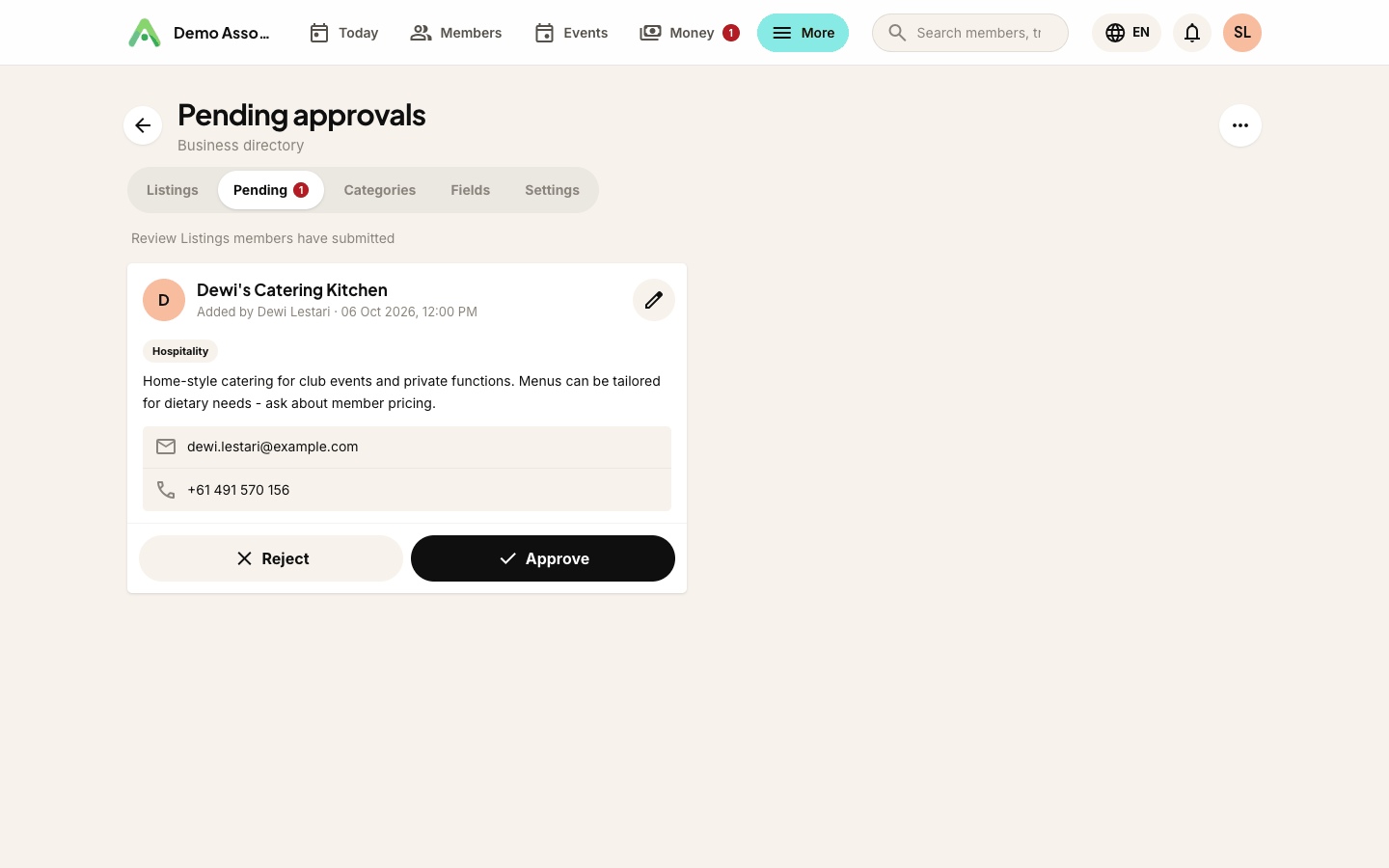
- Pending approvals - entries members have sent in that are waiting for you.
- Categories - the groups visitors filter by.
- Extra fields - your own fields on every entry in this directory.
- Settings - how the directory behaves.
View public page opens the directory as visitors see it, once it's enabled.
Directory settings
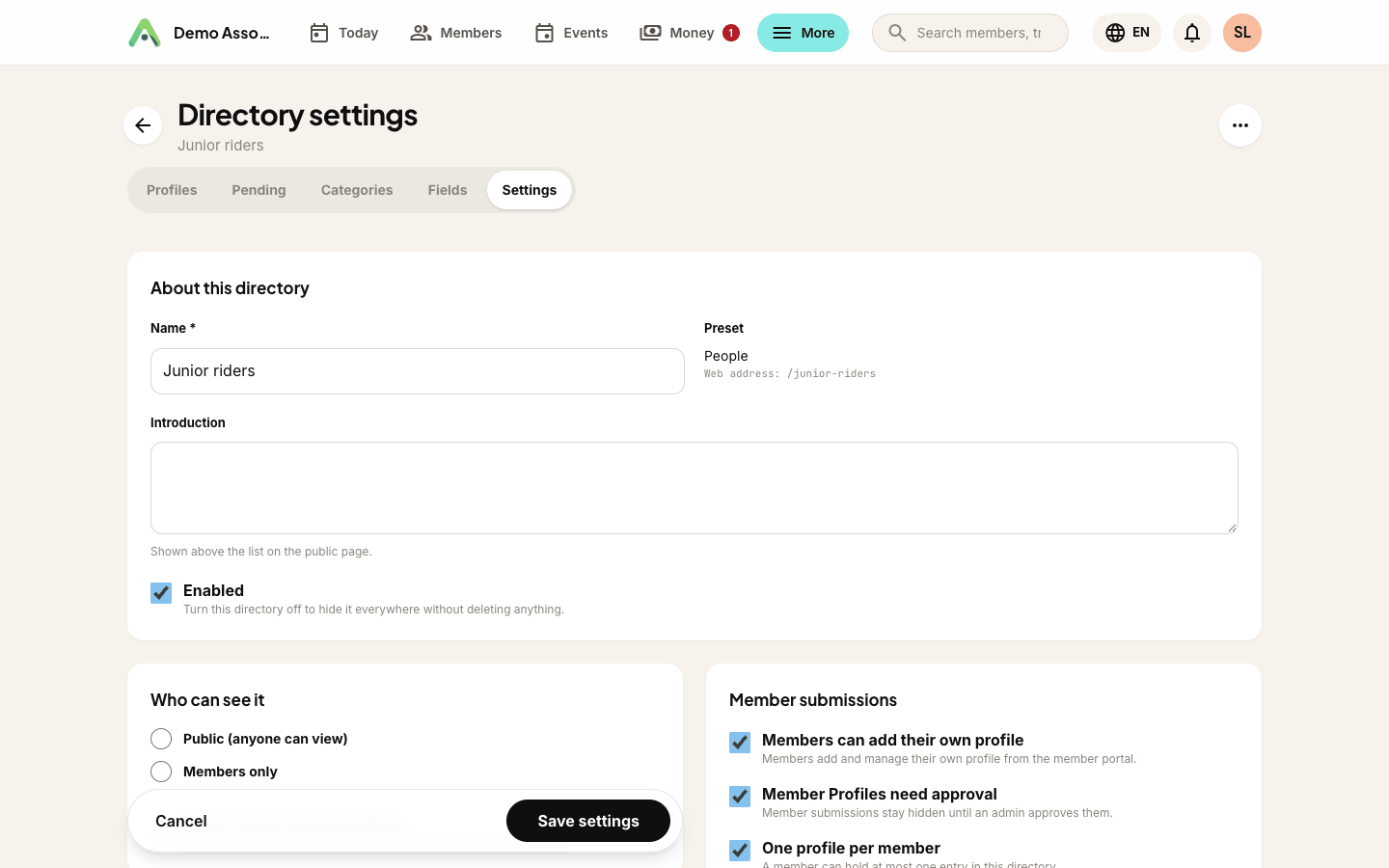
The Settings tab controls who can add entries, what they fill in and who can see it.
- Name and Introduction - the introduction shows above the list on the public page.
- Enabled - turn a directory off to hide it everywhere without deleting anything.
- Who can see it - Public (anyone can view) or Members only (visitors are asked to sign in first).
- Show contact details publicly - email, phone and website on the public page. On by default for businesses, off for the other presets.
- Members can add their own listing - members add and manage their own entry from the member portal.
- Member listings need approval - member entries stay hidden until someone on your team approves them.
- One listing per member - a member can hold at most one entry in this directory.
- Membership levels that can add entries - leave them all unticked to allow every current member, or tick levels to make a spot in the directory a perk of those levels.
The wording follows the preset, so a people directory says profile where a business directory says listing. New business directories start with member self-service on and approval off. People and general directories start the other way round: members can't add entries until you allow it, and anything they add needs approval.
Business directories have one more panel, Business fields: tick Enable Location/Address Field to collect a city, postcode and address, and choose which fields the member form collects and the public page shows.
Delete this directory at the bottom of the Settings tab removes the directory and every entry in it, and can't be undone. To take a directory offline for a while, untick Enabled instead.
Adding entries yourself
Click Add listing (or Add profile, Add entry) on the first tab. The form has:
- The name or title, a short subtitle line (a tagline, or a role such as U15 · Midfielder) and a description.
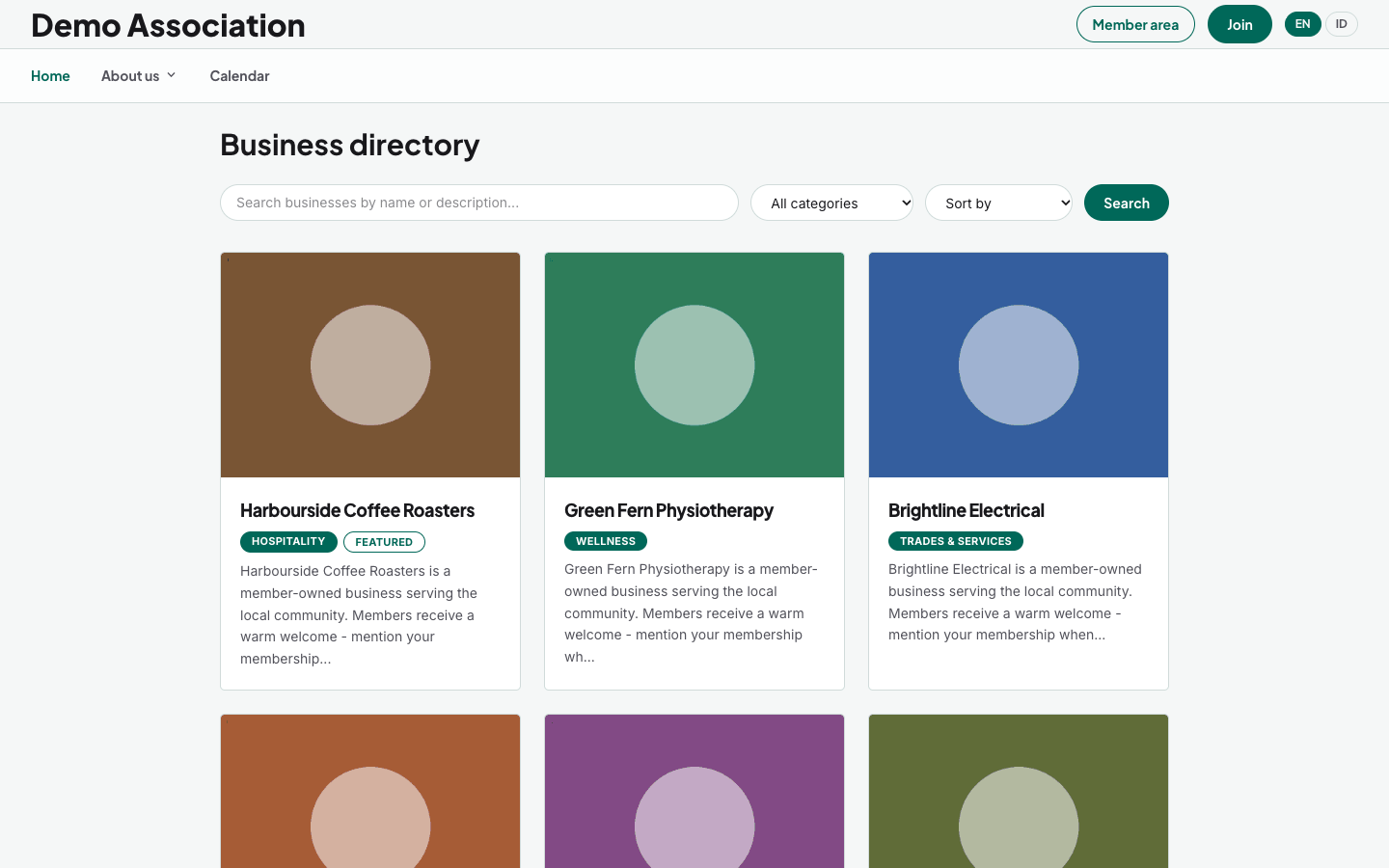
- A photo from your media library. It's the cover image on the card, so a landscape photo works best. Entries without one show a coloured tile.
- Category, Status (Active, Draft or Archived) and Featured. Featured entries always sort to the top. Position orders the rest - lower numbers come first.
- Linked member - optional. The contact the entry belongs to, such as the member who owns the business or a player's guardian. It's never shown publicly.
- Any Extra fields you've added to this directory.
Business listings also have contact details, location, social links and a member offer: tick Has Member Offer and describe the discount or perk in Member Offer Details. Listings with an offer wear a Member Offer badge on the directory cards, the website section and the embed.
Entries your team adds are published straight away, with no approval step.
Profiles of people, and consent
A people directory is often used for children, so every profile has Consent to publish has been given (for a child, it's a parent or guardian who gives that consent). A profile can't go live until the box is ticked: if you set a profile to Active without it, it's saved as a draft instead.
Only your team can tick it. Members can't give consent on their own profile, so a member's submission stays hidden until someone on your team has confirmed consent.
People profiles never show contact details, although they can show a Birth year and Achievements instead.
Categories and extra fields
Categories are how visitors filter a directory - Restaurants, Under 15s, Committee. Add and rename them on the Categories tab, and use the up and down arrows to set the order they appear in the filter. A category that entries still use can't be deleted. A handful of broad categories filters better than many narrow ones.
Extra fields are your own fields on every entry in one directory - a shirt number, a year inducted, opening hours. They use the same field types as custom fields. For each field you choose Show on the public page and Members can fill this in on their own entry.
Entries members add themselves
While directories are switched on, the member portal has a Directories tab. Members see every enabled directory there and can browse them. Where a directory has Members can add their own listing on, they can add their own entry too, including uploading a photo (PNG or JPG up to 5MB).
If approval is required, new member entries arrive on the Pending approvals tab. Each card shows what the member sent in. Approve publishes it; Reject sends it back with your Feedback for the member. The member is emailed either way.
What visitors see
Each enabled directory has its own public page at anggota.app/m/your-organisation/directories/its-web-address: a grid of cover photos with a category filter, a search box and sorting by Name (A-Z), Most viewed or Recently added. Clicking a card opens the entry's full page. Views are counted per entry, so you can see what draws attention.
A Members only directory asks visitors to sign in first, and signed-in members of your organisation can then see it.
Putting a directory on your website
- On your Anggota website - add a section, set its type to Directory and pick which Directory to show. The grid, filters and all, renders in your site's colours. See sections and layouts. A members-only directory shows a short note with a sign-in link rather than the list.
- On a website you already run - copy the Directory snippet from Settings → Embed codes. If you have more than one public directory, choose it under Which directory first. See embedding on your own website.
Both stay in sync automatically: approve an entry and it appears everywhere at once. If your people directory takes sponsors, see player sponsorships.
Questions people ask
Can a member have more than one entry? Not in the same directory while One listing per member is on. They can have an entry in each directory that allows it, and your team can add as many entries as you like.
What happens when a membership lapses? Nothing automatic. Entries stay until you archive or delete them. The membership level setting only decides who can add a new entry.
Can I charge for listings? Not directly, but Membership levels that can add entries lets you make a listing a perk of a paid level.
Where did a deleted entry's photo go? Nowhere. Photos, including the ones members upload, live in the shared media library and stay there after the entry is gone.
Why isn't my directory on my website? Check it's Enabled and that Who can see it is Public. A members-only directory can't be embedded on another website at all.
Still stuck? Reach your Anggota contact and we will walk you through it.
mailContact us