

EN, Language: English
Language
EN, Language: English
Help centre
Guides and answers for running your organisation on Anggota.
Tax (GST, PPN, SST)
Anggota can add tax such as GST, PPN or SST to what members pay you. Tax is off for every organisation until you switch it on, so nothing changes until you decide it should.
Switch tax on
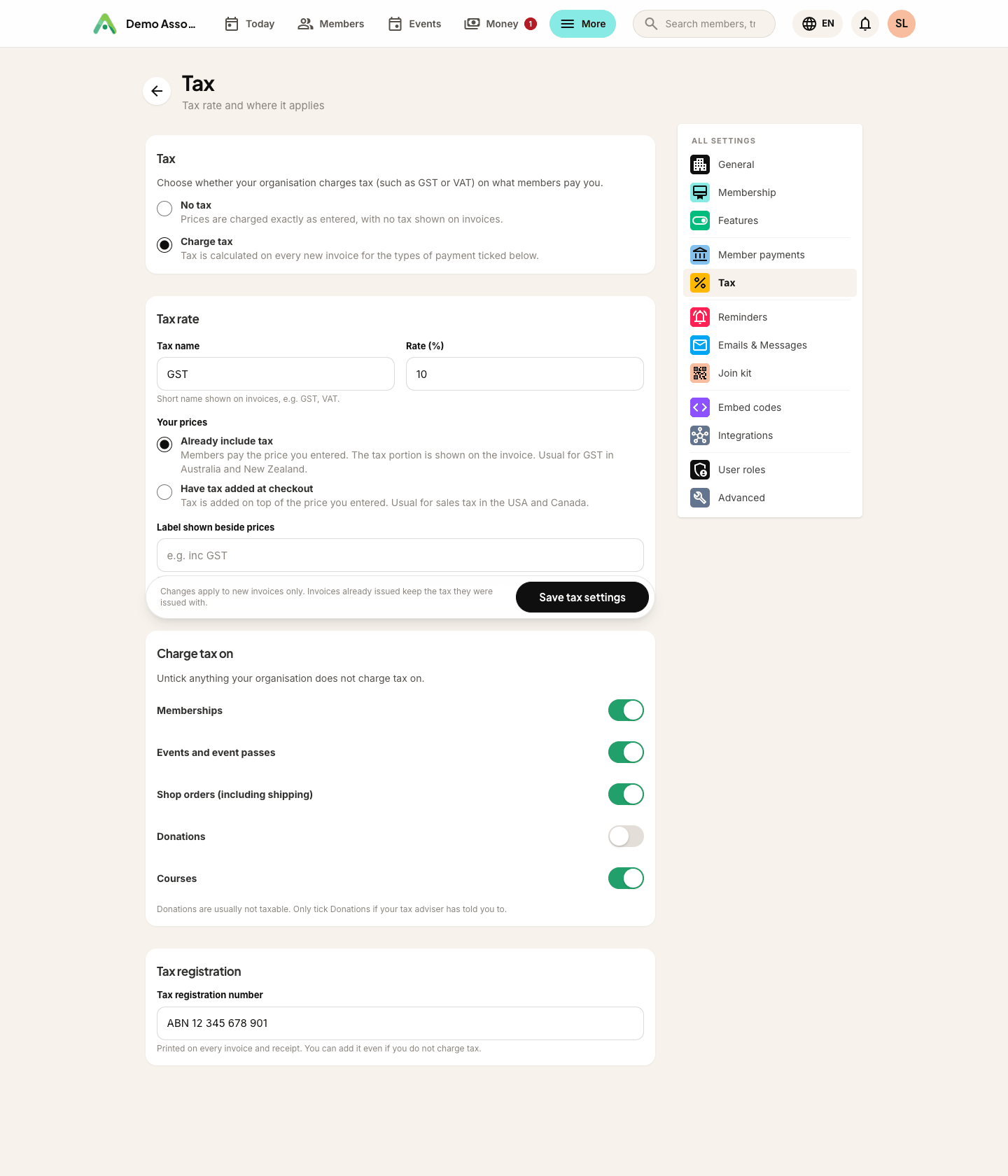
Open More → Settings → Tax.
- Choose Charge tax.
- Enter the tax name (for example GST, PPN or SST) and the rate in percent. The form is pre-filled with the usual rate for your currency, so check it matches your own registration.
- Choose how your prices work:
- Already include tax - members pay exactly the price you entered, and the tax part is shown on the invoice. This is usual for GST in Australia and New Zealand.
- Have tax added at checkout - tax is added on top of the price you entered. This is usual for PPN in Indonesia and SST in Malaysia.
- Under Charge tax on, untick anything you do not charge tax on. Memberships, events, shop orders (including shipping) and courses are ticked. Donations are not, because they are usually not taxable.
- Add your tax registration number (ABN, NPWP, SST number) if you have one. It is printed on your invoices and receipts, even if you do not charge tax.
- Click Save tax settings.
What members pay
The two ways of pricing give different results from the same number:
| You enter | Prices include tax (GST 10%) | Tax added at checkout (PPN 11%) |
|---|---|---|
| 110.00 | Member pays 110.00, of which 10.00 is GST | Member pays 122.10 |
| 100,000 | Member pays 100,000, of which 9,091 is GST | Member pays 111,000 |
Tax is worked out on each line of an invoice and rounded per line, so a membership with a joining fee shows the tax on each part.
What members see
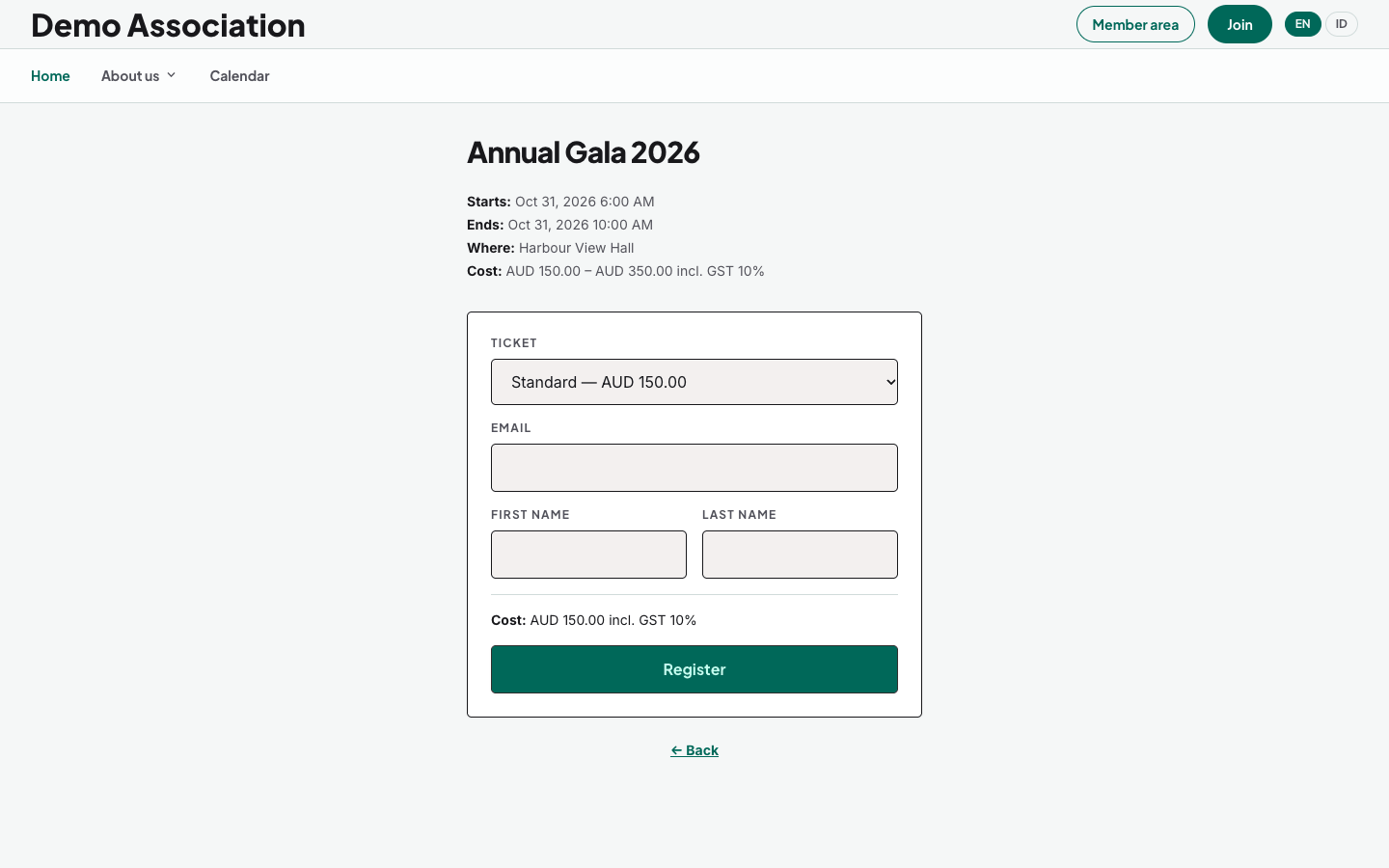
Wherever a member is about to pay, Anggota shows the amount they will actually be charged, with the tax included, for example IDR 111,000 incl. PPN 11%. That covers the join page, event registration, season passes, courses, the shop checkout and the embedded widgets on your own website.
In your shop listings, prices are shown as you entered them with a short label beside them, such as inc GST or + PPN 11%. You can change that label under Settings → Tax. The cart shows the subtotal with the same label, and the checkout then shows the tax and the full total before the member pays.
Invoices and receipts
Every invoice shows the tax clearly:
- Prices include tax: the total, then "Includes GST 10%" with the amount.
- Tax added at checkout: the subtotal, a line for the tax, then the total.
Your registration number is printed underneath. Receipt emails show the tax and the registration number under the amount paid.
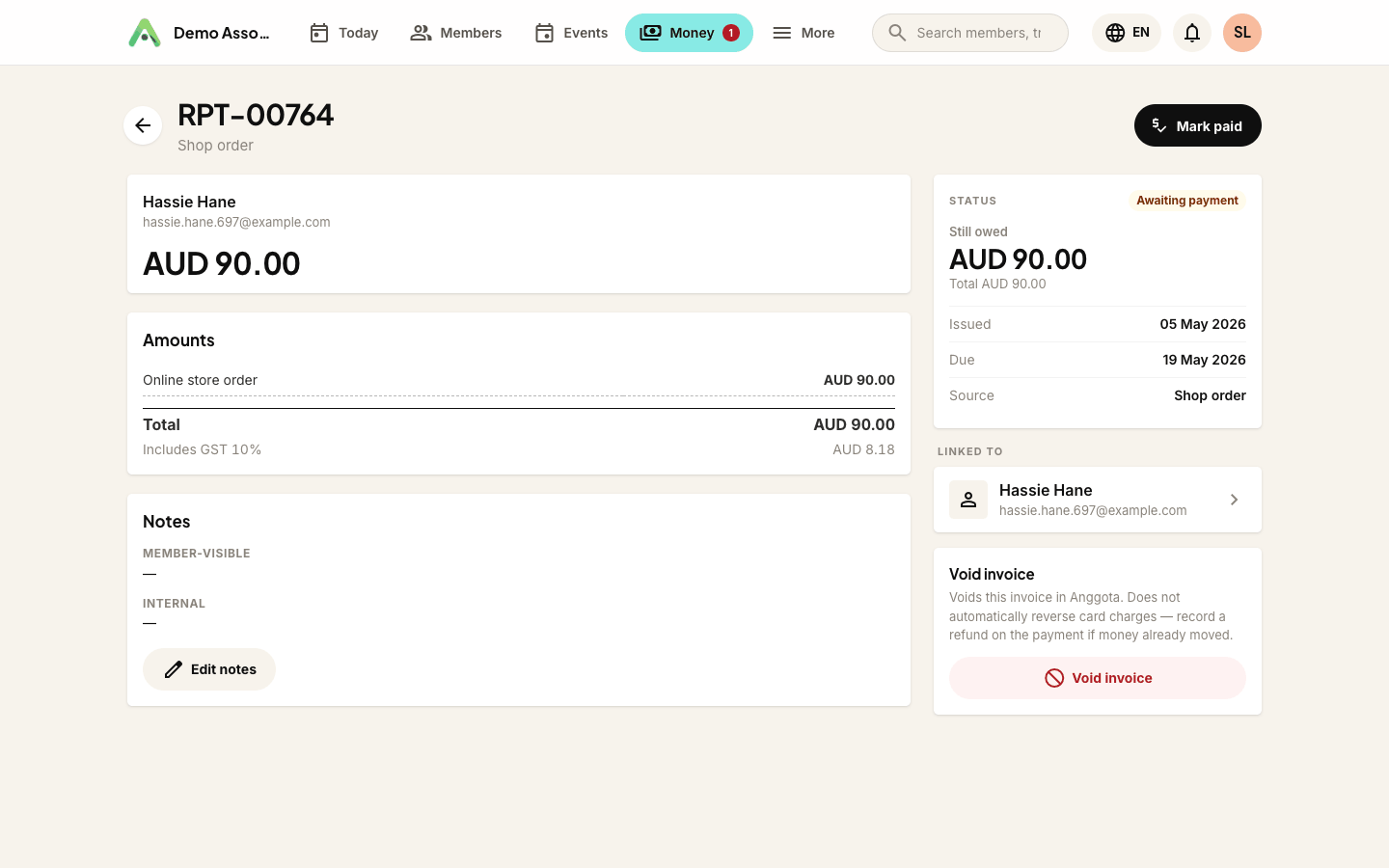
Issued invoices never change. Each invoice keeps the rate, the tax amount and the registration number it was issued with. If you change your rate or add a registration number later, only new invoices use it.
Donations
Donations are not taxed unless you tick Donations under Charge tax on. If you do, the tax comes out of the gift rather than being added to it, so a donor who gives 100,000 is charged 100,000.
Automatically renewing memberships
A member who signs up for automatic renewal is charged the same amount each period, tax included, as agreed when they signed up. If you change your tax settings later, members who already auto-renew keep paying that same amount. Their renewal invoices show the tax as part of it.
Exports and reports
- The invoice export on Money → Invoices has Subtotal, Tax and Total columns for every invoice.
- The Tax summary under Reports groups your invoices by tax rate, collected or billed, for your GST, PPN or SST return.
Good to know
- Switching tax off keeps your rate and label saved, so switching it back on restores them.
- Only people who can manage your organisation's settings can change tax.
- Anggota does the arithmetic, but it cannot tell you whether you must register for tax or which rate applies. Check that with your tax adviser.
Still stuck? Reach your Anggota contact and we will walk you through it.
mailContact us