

EN, Language: English
Language
EN, Language: English
Help centre
Guides and answers for running your organisation on Anggota.
Running online courses
Online courses let you build a course from chapters of content, add an exam, and have members (or the public, if you choose) work through it at their own pace, with their progress tracked and a certificate at the end. It all runs on the same accounts your members already use for membership, events and the store, so nobody needs a second login.
Switching courses on
Courses are off until you want them. Go to More → Settings → Features, tick Online courses, and save. A Courses item appears under More, and the member portal gains a Courses tab. Switching the feature on also installs the course email templates (enrolment received, approved, declined, payment link, and course completed) - you can reword any of them under More → Emails & messages.
Creating a course
Go to More → Courses and click New course. The settings on this screen shape the whole experience:
- Title, description and cover image - what people see in the catalogue and on the public course page.
- Status - courses start as Draft. A draft is invisible to students, so build in peace and publish when ready.
- Price - leave blank for a free course, or enter an amount in your organisation's currency to sell it.
- Enrolment - Automatic gives access the moment someone enrols (or pays). Admin approval required holds every sign-up for your review first.
- Who can take it - Members only restricts the course to current members. Anyone lets the public sign up with just a name and email - they become a contact in your database, no membership needed.
- Pass mark - the overall exam percentage that counts as a pass.
- Whether students can retake a failed exam, and whether they can download their own certificate.
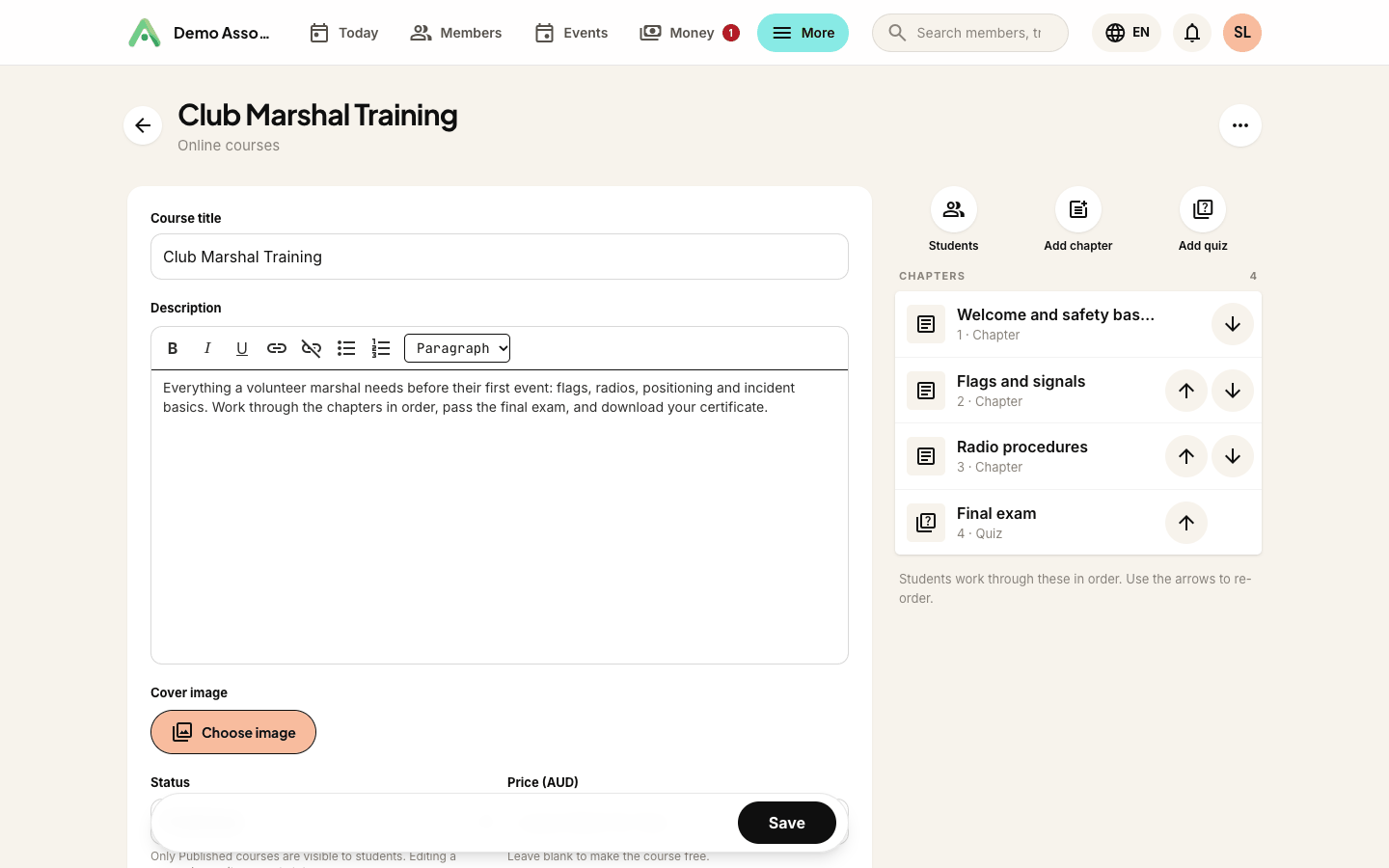
The publish state matters more than it looks: students cannot see a draft course, and any enrolment emails already sent will point at a page that does not exist yet. The orange banner and the Publish button at the top of the screen keep you honest.
Chapters and content
A course is an ordered list of chapters (and quizzes - see quizzes, scores and certificates). Add chapters from the course screen, drag them into order with the arrows, and click one to edit its content.
Chapter content uses the same building blocks as your website pages: text and image sections, photo galleries, video embeds (paste a YouTube or Vimeo link) and custom embeds (audio players, maps - any iframe embed code). Mix them freely, up to ten sections per chapter.
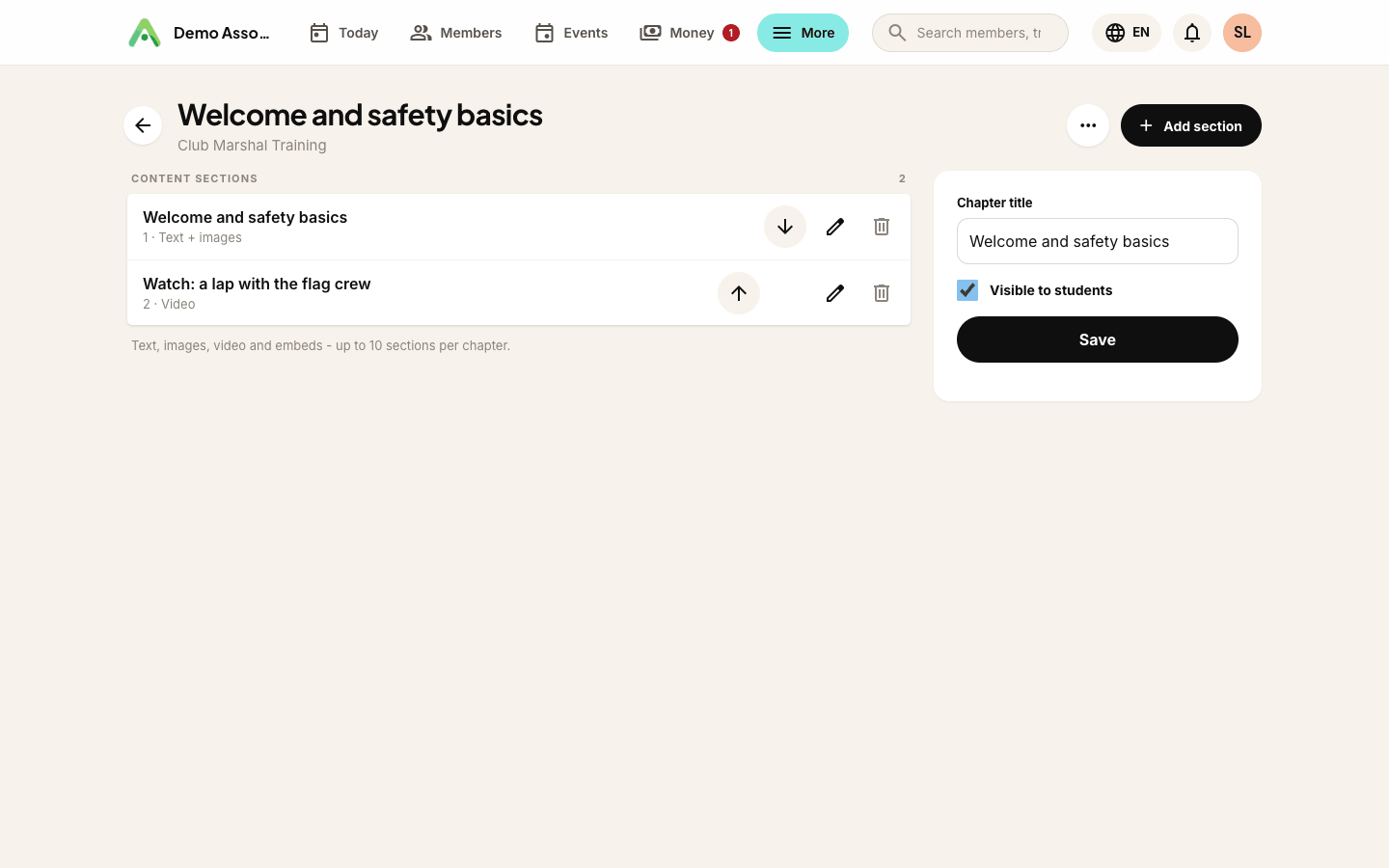
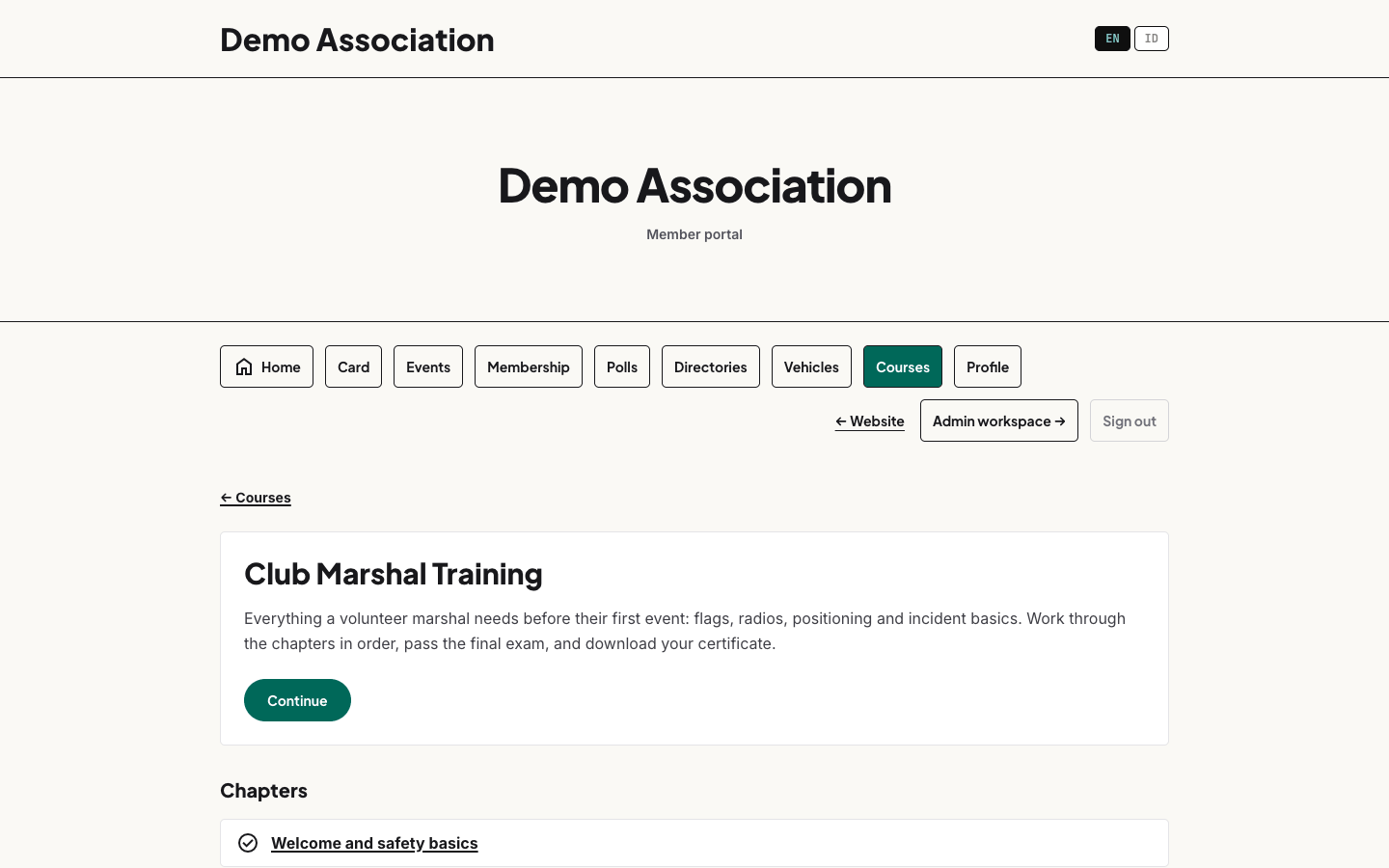
Students read a chapter and press Mark done & continue to move on. Chapters unlock in order: nobody can skip ahead to chapter three without finishing chapters one and two.
How people enrol
There are three doors into a course:
- The member portal. Members open the Courses tab, see every published course, and enrol (or buy) with one click.
- The public course page. Every published course has its own page on your site at
/o/your-organisation/course/course-name. For an Anyone course, visitors sign up right there with a name and email - no account creation, no password. They get an email link, and signing in to the portal with that same address just works. - You add them. On the course's Students screen, add anyone by email. They are created as a contact if needed and get immediate access, free of charge - handy for staff, scholarships or offline payments.
For paid courses, enrolment flows straight into payment - card, or bank transfer if you offer it. A person who signs up but does not finish paying is held at Awaiting payment and can pick their payment back up any time. If a paid course also requires approval, the order is approve first, pay second: your approval email carries their personal payment link.
Reviewing students
The Students button on the course screen lists everyone: status, how they signed up, registration date, chapter progress, exam score and completion date - with a CSV export for your records.
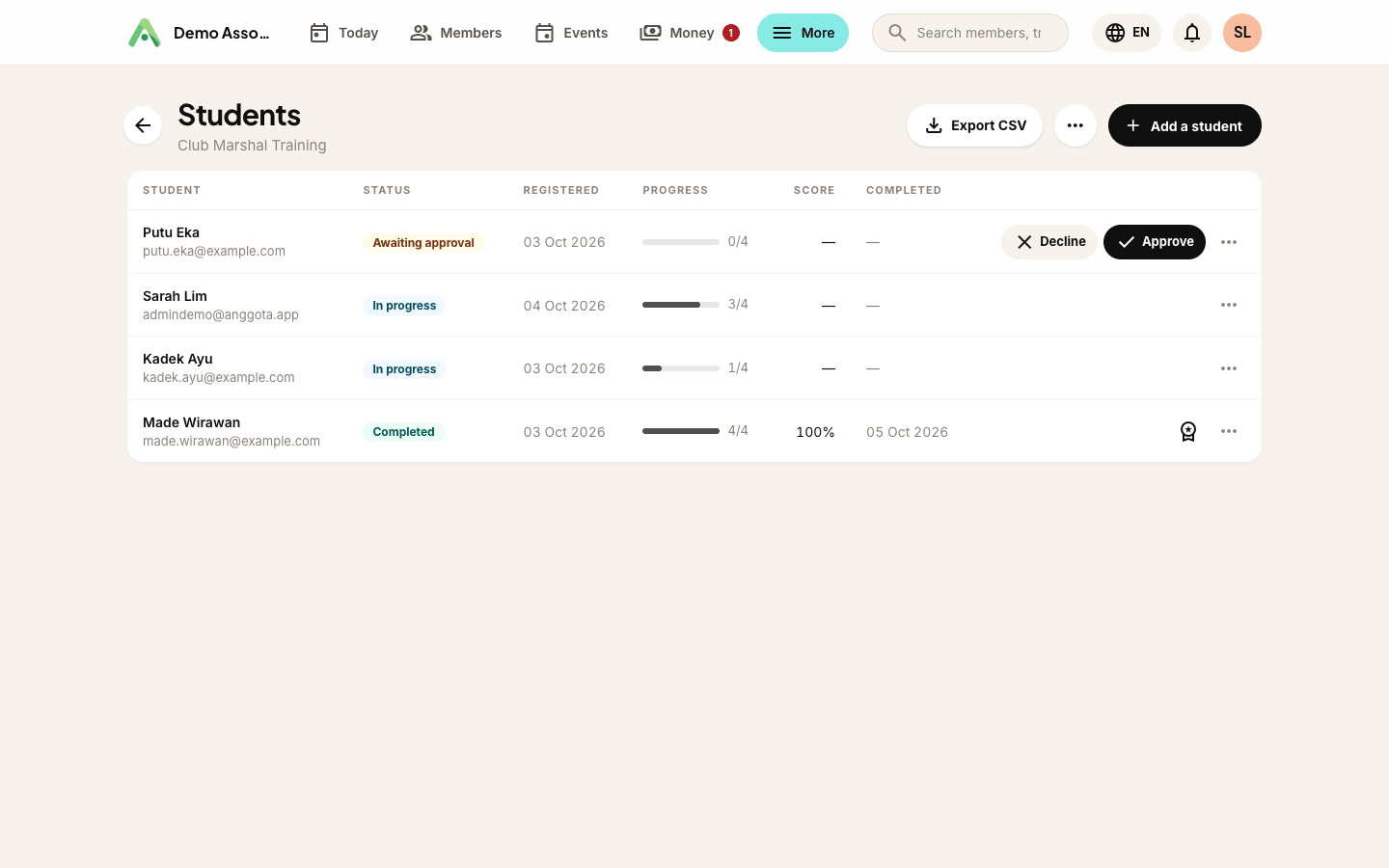
Sign-ups waiting for approval show Approve and Decline buttons; a decline can carry a short reason, which is included in the email the person receives.
Still stuck? Reach your Anggota contact and we will walk you through it.
mailContact us